
Local Line is a direct-to-supplier procurement platform used by grocers, restaurants, distributors, and institutional buyers to source direct from local suppliers. This article walks you through how to get your buyer account created and configured so your team can start placing orders.
If you're already in conversations with the Local Line team, your onboarding manager will guide you through most of this. If you're setting up independently, follow the steps below.
Before you begin
Before creating your account, gather the following:
- Your organization's legal name and primary business address
- Tax ID (if applicable for invoicing)
- The full list of locations that will be ordering through Local Line (stores, restaurants, warehouses, etc.)
- A list of team members who'll need access, along with their roles
- Existing supplier relationships you want to invite or transition onto Local Line
- Compliance requirements your suppliers must meet (food safety certifications, COIs, growing practices, etc.)
If you're a on our Scale or Enterprise plans, a Local Line onboarding manager will handle the initial account configuration with you.
Step 1: Provisioning your account
Buyer accounts on Local Line are provisioned by our team rather than created via a self-serve signup. This is intentional — buyer accounts often involve multiple locations, custom integrations, and supplier onboarding that benefit from a guided setup.
To get started:
- Sign up for an account at sourcing.localline.ca/register.
- Wait for our team to contact you.
- After confirming your sourcing needs, locations, integrations, and more with our team, you'll receive an email inviting you to login to your account.
- Your onboarding manager will schedule a kickoff call to begin configuration.
Step 2: Login for the first time
Once your account is provisioned:
- Go to sourcing.localline.ca/login.
- Enter the email address tied to your account.
- Use the temporary password from your welcome email.
- You'll be prompted to set a new password on first login.
Step 3: Configure your organization profile
Your organization profile is what suppliers see when you connect with them and what appears on invoices and order documents.
- Click 'Settings' in the bottom-left corner.
- Fill in your business name, logo, unit of measure (miles vs. km's).
- Click 'Payment methods' to add your preferred way to pay your suppliers.
- Click 'Save' in the bottom-right corner.
Step 4: Add your locations
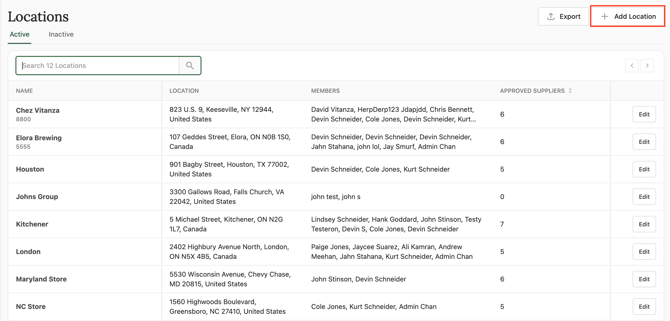
Most buyers operate across multiple locations — store sites, restaurant locations, warehouse facilities, kitchen prep spaces. Each location can have its own delivery address, contact, and ordering team.
- Click on 'Locations' in the left-hand navigation.
- Click 'Add location' in the top-right corner.
- Enter the location name, address, primary contact, and location permissions.
For full instructions, see Adding & editing locations.
Step 5: Invite your team
Add the people who'll be placing orders, approving suppliers, or managing the account.
- Go to Users.
- Click 'Add User'.
- Enter their email address, first name, last name, role, locations they need access to, and apply any category tags (optional).
- Click 'Add User'
For details on roles and permissions, see Adding & editing users.
6. Set up integrations (optional)
Connect your ERP, OMS, POS, or accounting systems so data flows automatically.
Common integrations include:
- ECRS for grocery POS
- SPS Commerce for EDI transactions with suppliers
- i-Trade Network for supplier data and compliance
- QuickBooks or other accounting platforms
- Custom integrations via API or EDI
Your onboarding manager will scope which integrations are right for your operation. See the Integrations section of this knowledge base for setup details.
Step 7: Connect with suppliers
Once your account is configured, you can begin connecting with suppliers — either inviting your existing suppliers to join you on Local Line or discovering new ones through the Sourcing Network.
To add your current suppliers:
-
Go to Suppliers
-
Click 'Invite Suppliers'
-
Complete the form and click 'Send Invite'
For details locating new suppliers, see Searching for Products and Suppliers.
What's next
With your account set up, the natural next steps are:
- Finding suppliers - discover or invite the producers you want to work with
- How Local Line fits into your procurement workflow - orient your team to the platform
- Approving suppliers and Viewing food safety documentation - establish your vetting process
Need help?
For setup questions, contact your onboarding manager directly or email support@localline.ca. If you don't yet have an account, contact sales@localline.ca to get started.