
If you need to refund an order in full, you can cancel the order in your Local Line back office and you will be given the option to refund the payment to the same payment method (credit card or ACH):
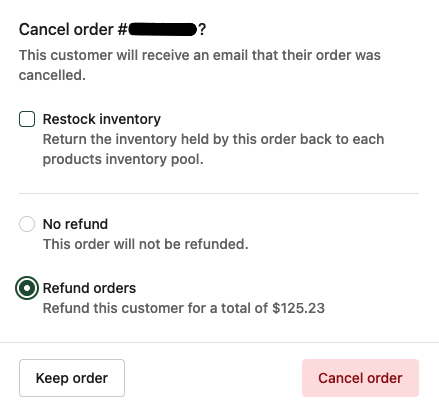
However, there may be cases where you don't want to cancel the order and still want to refund payment, either in full or partially. While this can't be done in your Local Line back office, you can do this in your LocalPay portal.
Accessing your LocalPay Portal
In your Local Line back office, click Payment -> Payment Gateway Setup -> View your payments portal:
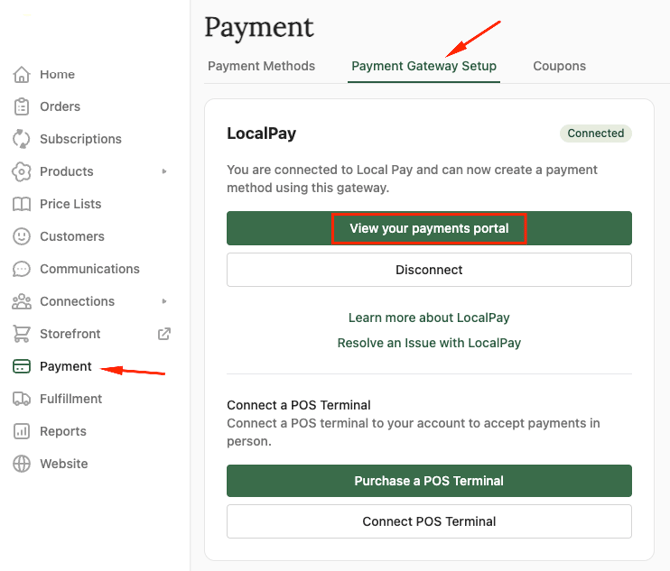
This will open a new tab where you will enter your LocalPay username and password. Please note this is not the same as your Local Line login -- the username and password are the ones you chose when you created your LocalPay account.
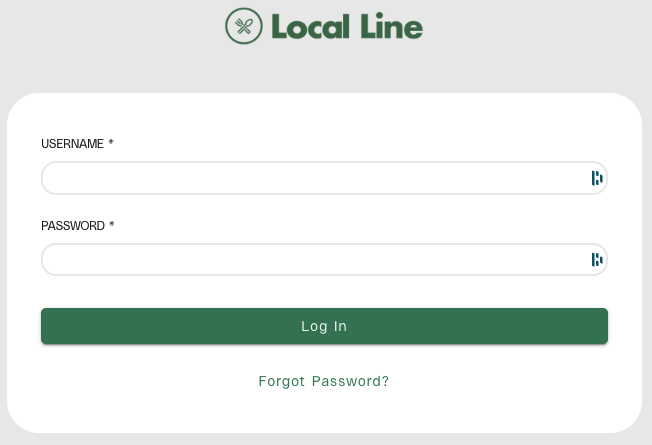
If you know the username but have forgotten your password, you can click the Forgot Password? option to have a password reset link emailed to you. If you do not know your username, please reach out to the Local Line support team.
After logging into your portal, you first will need to find the original payment you want to refund. Click Payment History on the left, and then in the Payment History table you can use the search and date range options to locate the payment. For online payments, the easiest way to find a payment is to search by order number:
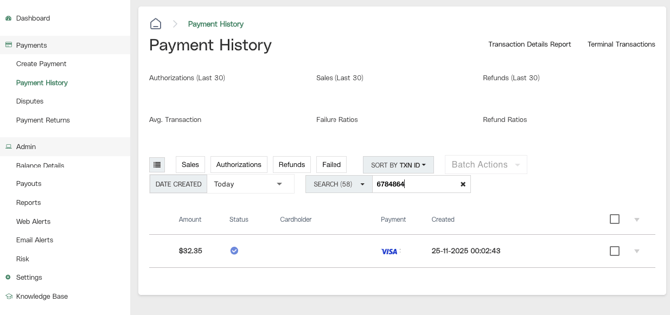
Click the amount of the payment to open the transaction. At the top will be several buttons, the appearance can vary slightly depending on if you are viewing a transaction on the same day before it has settled, or if it has already settled.
For same-day payments, the best option is to cancel and refund the order in full in Local Line, and then log a new order with the updated products. Cancelling an order on the same day will also reverse any processing fees, and the customer will not see the charge on their card statement.
For payments that have already settled, you will see a Refund button at the top. Click this button, and you will have the option to enter a custom value for the refund:
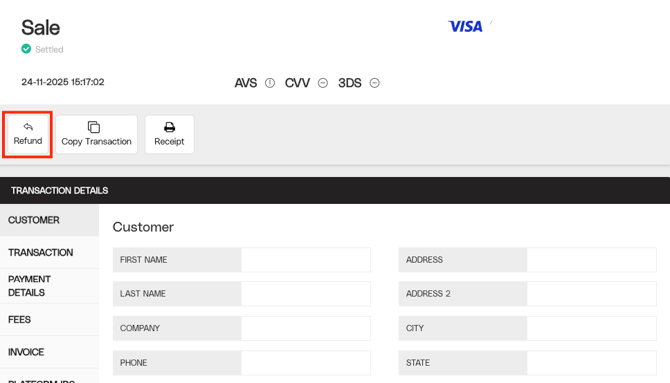
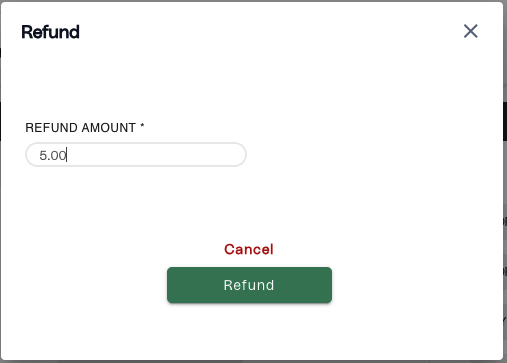
Enter the partial amount you would like to refund and click the Refund button.
Please note that any refunds you perform in the LocalPay portal will not be reflected on the order in Local Line, so you will likely want to make a note on the order that you have refunded part of the payment. Also, if you do not have any sales payouts pending and you perform a refund, or your pending payout is less than the refund amount, your LocalPay account will be drawn into the negative until you have more sales.
If you are using a different payment gateway (e.g. Stripe or Square), you can still perform a partial refund through the portal for the respective service. Please consult the support docs for your provider for specific instructions.