
What is Square Sync
Square Sync is a new two way integration between Local Line and Square that helps farms, food hubs, and local food businesses manage in-person sales alongside their online operations.
With Square Sync, transactions processed through Square automatically sync back into Local Line as a paid order. Inventory updates in real time across both systems, helping you avoid manual reconciliation and duplicate inventory management.
Whether you're selling at farmers markets, operating a farm stand, running a retail store, or managing wholesale and preorder sales, Square Sync helps bring all your sales channels together into one connected system.
How Square Sync Works
Square Sync connects Local Line and Square in two directions:
Inventory Sync: Local Line → Square
Local Line acts as your source of truth for products, pricing, and inventory.
When you sync a Price List with Square:
- A new location is created in Square with the name of your Local Line price list
- Products from your price list are added to Square
- Product pricing, descriptions, packages, and inventory quantities sync automatically
- Any inventory or pricing updates made in Local Line will update in Square
Order Sync: Square → Local Line
When you make a sale through Square from your synced price list location:
- The transaction is automatically created as a paid order in Local Line
- Inventory is deducted automatically
- Orders are tagged with a Square attribute for reporting and tracking
- Your reporting and inventory stay accurate across all sales channels
Please note:
- Orders that were created in Local Line do not sync to Square
- Changes made to products in Square will not sync back into Local Line
- All product, pricing, and inventory updates should be managed through Local Line
- Items created in Square do not sync back to Local Line, and if those items are placed on an order, the order created in Local Line will not include those items
- You will need to manually assign a bank account for payouts to the new location in your Square account
How to Connect Square to Local Line
Step 1: Connect Your Square Account
- Head to Settings → Payment Gateways
- Under the Payments tab, click Connect Square
- Approve the connection to your Square account
Once connected, Local Line will be authorized to sync products and orders with Square. If you already have a connection with your Square account, you will need to disconnect and then connect again in order to approve the new required permissions.
Step 2: Enable Square Sync on a Price List
- Head to Price Lists
- Click Settings for the Price List you want to sync with Square
- Scroll to the bottom of the settings page
- Locate the Square Integration option
- Turn the integration on
- Click Apply
Your Price List will begin syncing with your Square account automatically. If you have a large number of products and packages, the initial sync may take some time.
Viewing Synced Products in Square
Once your Price List finishes syncing:
- Open your Square account
- Navigate to the Item Library
- You will see your Local Line products available in Square
- Each Local Line price pist will appear as a separate Location
Before processing sales, make sure your Square POS device is set to the correct Location that matches your synced price list.
Processing In-Person Sales
After setup is complete:
- Open your Square POS device, app, terminal, or checkout system
- Select products synced from Local Line
- Process the customer transaction through Square
Once the sale is completed:
- The order will automatically appear in Local Line
- The order will be marked as paid
- Inventory quantities will update automatically
Sales Taxes
When you sync your price list with Square, if you have tax enabled for the product on that price list, it will have taxes enabled on the item in Square. If you have set a static custom tax rate in Local Line, that is the rate that will be set in Square as well.
In Square you need to ensure your settings are set for Additive tax calculation, to match how taxes work in Local Line (i.e. taxes are not included in the product price). To check your tax setting in Square, go to Settings -> Account & Settings -> Payments -> Sales taxes, and then click the tax rate for your synced price list location:
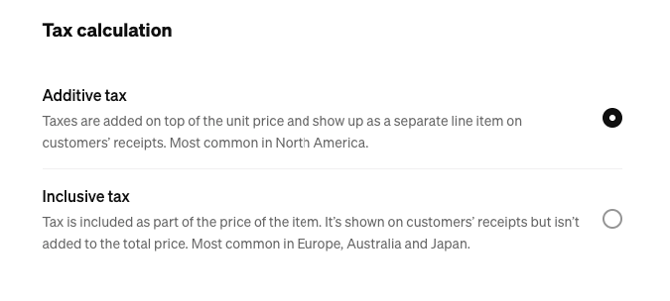
If you have this set to Inclusive tax, the amounts on orders created in Square will not match the order created in Local Line.
Best Practices
To ensure your sync works properly:
- Manage all products, pricing, and inventory updates through Local Line
- Use separate price pists if you want separate Square Locations
- Verify your POS device is using the correct Square Location before selling
- Avoid editing synced products directly inside Square
- If you want a product to be available in Square by not in LocalLine, you can set the product as "not visible" in LocalLine -- this will hide the product from your LocalLine storefront, but it will still sync to Square so you can create orders in Square that will sync back to LocalLine
Multiple Payment Gateways
If you are using another payment gateway in addition to square (i.e. LocalPay or Stripe), customers in their account settings in the storefront will have the option to save their card to either gateway. Cards saved to one gateway are not accessible to the other, so if a customer saves their card to Square, but you are using Stripe for your online store, they will not see their saved card in the checkout.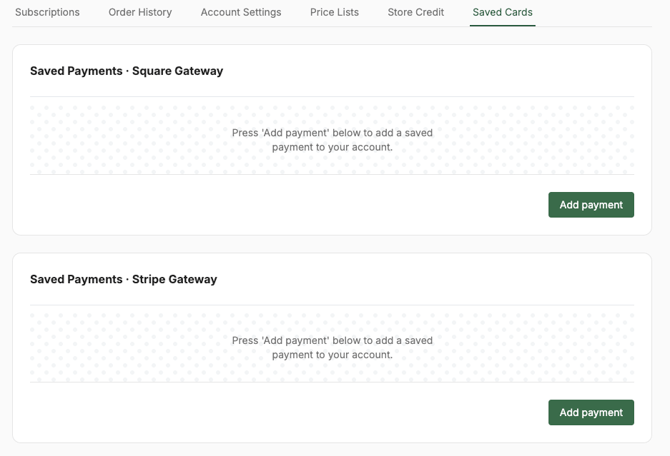
Notes and Limitations
- Shared products are not yet fully supported. They will sync to Square, and orders in Square for a shared product will create an order in Local Line, however the inventory will not be deducted and a shared vendor order will not be created. Because the shared vendor order is not created, vendor payouts will not be calculated on these orders.
- Boxes are not yet fully supported -- boxes from your synced price list will appear in Square and will create an order in Local Line when sold, however the box contents will not appear.
- Square allows different bank accounts to be linked to different locations -- you will need to ensure you have a bank account linked to the new location that is created when you enable Square Sync in order to receive payouts for the payments you process in Square.