Use this best practice guide to how to sell subscription orders.
Add subscription orders to your account
Enable subscriptions in your back office
Skip an upcoming subscription order
Prevent customers from skipping subscription orders
Change the fulfillment date of an upcoming order
Edit an open subscription order
Enable subscriptions in your storefront
How your customer subscribes on your storefront
Key concepts
- Subscription plan - Defines how orders are created on a recurring basis. It specifies the customer, product(s), frequency, fulfillment, and payment details.
- Subscription discount - A percent discount you can apply at the price list level in Price lists > Settings, that is applied to all subscription products and packages on an order. It is not applied to any non-subscription products that are on the same order.
- Draft order - An order that is created but not placed yet. Inventory is not deducted at this stage, and the order is editable by the customer in the storefront. Draft orders are displayed in the Upcoming order section when viewing an existing subscription. If the option to allow skipping orders is enabled, draft orders can be skipped by the customer.
- Subscription order - An order that is created automatically based on the criteria defined in the subscription plan. This is when inventory is deducted and payment is processed, and the order appears in your Orders table.
FAQ
- Can I add products to an existing subscription plan?
- Can I add other products to an open subscription order?
- What happens if I do not have sufficient inventory for a subscription product when the subscription order is automatically created?
- What happens if I cancel a subscription?
- What happens if I skip a draft order?
- What happens to an existing subscription if I disable subscriptions in Products > Subscriptions settings?
- What happens to an existing subscription if I disable subscriptions in Price lists > Settings > Subscriptions?
- What happens to an existing subscription if I edit a payment method that is assigned to it?
- What happens to an existing subscription if I edit or delete a fulfillment plan that is assigned to it?
- What happens if I edit a customer’s address when they have a subscription plan?
- What happens if I delete a customer that has a subscription plan?
- What happens if I change a product price for a subscription product?
- How do I remove a product from a subscription plan?
- What happens to an existing subscription if I edit the subscription discount.
- What happens to an existing subscription if I edit the Frequency Lead time setting?
- Can you create a subscription plan for variable weight products?
- How does subscriptions handle products that need approval to finalize the order (e.g. variable weight products)?
- Which emails are sent for subscriptions?
- How do I identify subscription orders in my Orders table?
- How do I identify subscription products in my Log order view?
- Can I set an expiry date for a subscription plan?
- What happens if a subscription order fails to open?
-
Can I add products to an existing subscription plan?
- Yes - when you add a product to a subscription plan you are also adding to any upcoming (draft) orders that have already been created
-
Can I add other products to an open subscription order?
- Yes, you can do this from your Orders page, in the order edit view
-
What happens if I do not have sufficient inventory for a subscription product when the subscription order is automatically created?
- The order is still opened, and the inventory will be overdrawn
-
What happens if I cancel a subscription?
- Canceling a subscription prevents all future subscription orders from automatically opening
- Your customer receives an email to inform them the subscription has been cancelled
- Any existing open subscription orders remain open
- Any existing draft orders are skipped, and your customer receives an email to inform them
- Canceling a subscription prevents all future subscription orders from automatically opening
-
-
- Canceling is a permanent action. You may want to consider pausing the subscription if you expect to resume the subscription at a later date. Otherwise, you will need to create a new subscription
-
-
What happens if I skip a draft order?
- Your customer receives an email to inform them
- The skipped order is never opened
- The next draft order is created according to the schedule of the subscription plan
- Note that only draft orders can be skipped. And you can only skip an existing draft order, not future ones
-
What happens to an existing subscription if I disable a product's subscription option in Products > Subscriptions settings?
- Subscription orders continue to automatically create, but new customers will not be able to create a subscription for that product
-
What happens to an existing subscription if I disable subscriptions in Price lists > Settings > Subscriptions?
- Subscription orders will no longer open correctly if the option is disabled on the price list, and will generate errors
-
What happens to an existing subscription if I edit a payment method that is assigned to it?
- Subscription orders continue to automatically create based on the settings you initially defined
-
What happens to an existing subscription if I edit or delete a fulfillment plan that is assigned to it?
- If the fulfillment plan schedule is edited, you may also need to update the subscription plan and choose a date that is available according to the new schedule. Subscription orders may not open as expected otherwise
- If the fulfillment plan is deleted, subscription orders will not generate as expected
-
What happens if I edit a customer’s address when they have a subscription plan?
- The delivery address on the subscription plan is not updated. You must update the address manually on the plan as well
-
What happens if I delete a customer that has a subscription plan?
- You cannot delete a customer if they have an active subscription plan
-
What happens if I change a product price for a subscription product?
- The subscription plan will be updated with the new price, however any upcoming orders that have already been created will not be updated. Future orders will use the updated price
-
How do I remove a product from a subscription plan?
- You will need to access each subscription that has this product one by one and manually remove it
-
What happens to an existing subscription if I edit the subscription discount?
- The subscription discount remains what it was set to when the subscription plan was created
-
What happens to an existing subscription if I edit the Frequency Lead time setting?
- The Frequency Lead Time will be updated on any existing subscription plans that are using this price list, fulfillment plan and frequency -- note that it will take a full subscription cycle for this change to take effect on a plan (i.e. any upcoming orders that have already been created will not be updated)
-
Can you create a subscription plan for variable weight products?
- Yes, any combination of Charge By/Track By inventory settings works. It is advised to use the same "needs approval" option as you would for storefront orders -- subscription orders will open with a pending approval so you can edit the weight, approve and charge the customer's saved payment method if available
-
How does subscriptions handle products that need approval to finalize the order (e.g. variable weight products)?
- Subscription orders that originate from a subscription plan that you created in your back office on behalf of your customer bypass the Needs approval state the same as when you log an order
- Subscription orders that originate from a subscription plan created by your customer on your storefront and that have one or more products that need approval, are pre-authorized for payment and put on hold until you approve the order
-
Which emails are sent for subscription orders?
- Your customer receives an email notification when:
- A subscription plan is created
- An upcoming order has been created and is available to edit
- A subscription order is opened
- A subscription order is skipped
- A subscription plan is canceled
- Your customer receives an email notification when:
All of these emails are enabled by default, and can be disabled in Storefront -> Settings, except for the order skipped notification.
-
How do I identify subscription orders in my Orders table?
- Subscription orders are indicated with a green icon with circular arrows in the Attribute column with the order number
-
How do I identify subscription products in my Log order view?
- Subscription products are indicated with a green icon with circular arrows, the same one that is displayed in your Orders table
-
Can I set an expiry date for a subscription plan?
- No, subscription plans can only be canceled
-
What happens if a subscription order fails to open?
- An error report is sent by email to you. Details on the error messages and how to resolve them can be found in this article
Add subscription orders to your account
You can add subscription orders to your subscription with Local Line from your Settings page.
- Go to the Subscription tab.
- Click Add to subscription in the Subscription orders box.
- Click Confirm.
You can also contact our Success team by emailing support@localline.ca if you would like assistance with updating your Local Line subscription.
Enable subscriptions in your back office
By default you can create subscription plans manually in your back office only if you enable subscriptions on one or more of your price lists. If you enable subscription options for one or more products, your customers can also create subscriptions in your storefront.
You define settings like eligible payment and fulfillment options, subscription frequencies, when subscription orders are automatically created in your price list settings in the Subscriptions tab.
When you enable subscriptions on your price list, you can create a subscription plan for any of those products in your back office. Enabling this setting does not display subscriptions in your storefront. You must also Enable subscriptions by product to do that.
Prerequisite: You have a fulfillment plan with a recurring schedule (not flexible or custom). If you do not have one you must create one before proceeding with the steps below.
- On the Price lists page, click Settings for the price list you want to enable subscriptions for
- Click the Subscriptions tab at the top
- In the Enable subscription purchases on this price list box, click the toggle to enable subscriptions
- In the Fulfillment an Frequencies section, check the box next to each delivery plan or pick up location you want to use for subscription plans
- For each fulfillment plan you select, specify a frequency for it, meaning how often the subscription will be fulfilled. The frequencies you have available will depend on the type of schedule defined on the fulfillment plan (i.e. weekly or monthly)
- To add more than one frequency option, click Add frequency and use the controls to specify the frequency
- Click Delete to remove any unwanted frequencies
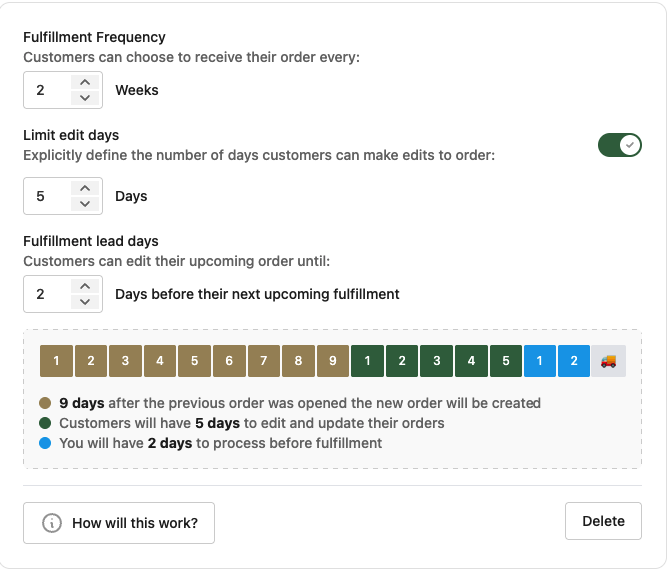
- If you want to limit how many days customers have to modify their upcoming order, you can enable the Limit edit days option, and then specify the number of days. Note that if you enable this option and set the value to 0, this means that customers will not be able to modify their upcoming subscription orders. Limiting edit days can be useful if you need time between subscription cycles to update pricing or inventory, or update box contents, before the upcoming orders have been created and are available for customers to modify
- For Fulfillment lead days, specify the number of days before the upcoming fulfillment date the draft order closes (customers can no longer make changes) and moves to an open order
- A diagram below the settings updates as you make changes to give you a visual representation of the subscription cycle:
- For each fulfillment plan you select, specify a frequency for it, meaning how often the subscription will be fulfilled. The frequencies you have available will depend on the type of schedule defined on the fulfillment plan (i.e. weekly or monthly)
- In the Payment Methods section, check the box next to each payment method you want to allow for subscription plans
- If you want to automatically prioritize store credit payment for subscription orders, check the box to enable this on any new subscription orders. The setting can also be toggled when editing an individual subscription plan
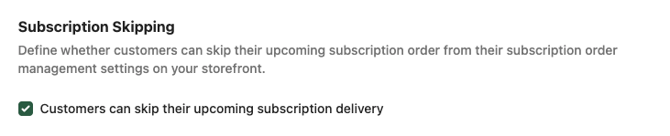
- In the Subscription Skipping section, check the box if you want to allow customers to skip their upcoming subscription delivery. This setting can also be toggled for each plan after it is created
- Click Save or Save and go back to save your changes
Create a subscription plan
When you create the subscription plan you are specifying which customer is subscribing to which products and how often, which fulfillment option they want as well as how they want to pay for their subscription.
You can add a subscription plan on a per customer basis, and a customer can have multiple subscription plans.
- In the left side navigation panel, click Subscriptions.
- Click Create subscription plan.
- Select the customer, or click New customer to add a new one.
- Click Add products to select which product(s) this customer is subscribing to. You can also add a custom item by clicking the Custom item button.
- In the Fulfillment box, choose delivery or pickup and fill in the details. If the fulfillment plan, date or frequency you need aren't displayed, check your fulfillment plan settings as well as your price list subscription settings to ensure they are set correctly
- In the Payment box, specify which method the customer will be using
- [Optional] In the Back office details section:
- Add Order tags that are applicable.
- Add Back office notes that are applicable.
- Click Save and go back.
The first subscription order is opened immediately after saving the subscription plan, inventory is deducted and if you have specified a credit card payment method the card is charged. The first order is not a draft and cannot be edited by the customer. Customers will be able to edit from their second order onwards.
The subscription plan displays the next upcoming (draft) order as well as when the next order after that will be.
If you want to add a product to only one subscription order, you can do so when the subscription order is opened from your Orders page table by editing the order, or customers can add a product to an upcoming order in the storefront.
Skip an upcoming subscription order
You can skip an upcoming subscription order from the Subscriptions page table by checking the box next to one or more plans and then clicking Skip. Or, from the subscription plan edit view -- click the Edit button for a plan and then click Skip Order in the Upcoming order box.
Your customer receives an email to notify them that the subscription order has been skipped.
Customers can also skip an upcoming order from the Subscriptions section in their account in the storefront if the Allow customer skipping option is enabled on their plan.
Prevent customers from skipping orders
If you do not want to give your customers the option to skip upcoming orders, you can disable the option in the price list subscription settings under Subscription Skipping so that any new subscription plans created will have the option disabled. If you want to disable this option on existing plans, you will need to edit each plan and toggle the option off in the plan.
Change the fulfillment date of an upcoming order
If you need to change the fulfillment date for an upcoming subscription order, you can edit the customer's subscription plan and click Edit date in the Upcoming order card
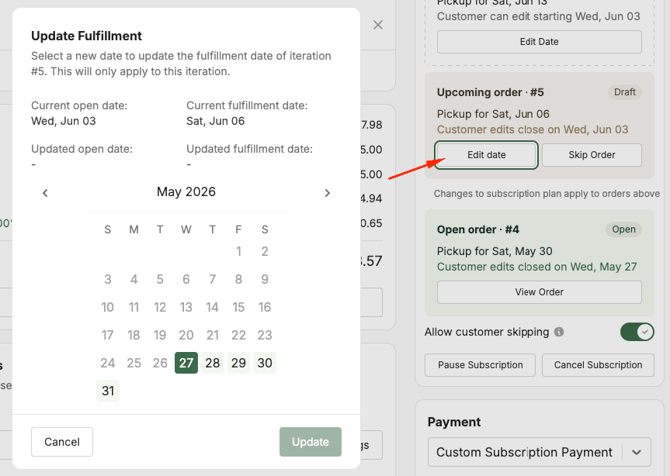
You can use the arrows at the top to change month, and then click on a date to select it. The details at the top show you the current open and fulfillment date, and will update to show you the new open and fulfillment date based on the date you have selected. Click Update to save your changes. Note that only available dates according to the fulfillment plan schedule will be available to select.
Important note: This will only update this single order and does not change the subscription plan itself, which will continue to generate orders according to the selected frequency. You may also need to update the next fulfillment date on the plan itself especially if you are changing the frequency. Click Edit Date on the Future order card to update when the next order automatically created by the subscription plan will be created.
Edit an open subscription order
If a subscription order has not been paid by a gateway payment method (i.e. credit card or ACH/EFT) or needs approval, when the subscription draft order moves to an open order you can modify it like you do other orders from your Orders page. Subscription orders are indicated with a green, circular icon in your Orders page table. Orders that have been paid with a gateway payment method cannot have their line items changed, but some details such as the fulfillment plan and date can be updated.
Cancel a subscription plan
You can skip an upcoming subscription order from the Subscriptions page table by checking the box next to one or more plans and then clicking Cancel.
Or, from the subscription plan edit view. Click the Edit button for a plan and then click Cancel subscription.
You and your customer receive an email to notify them that the subscription has been canceled.
Pause a subscription plan
If your customer is going to be away for an extended period, you can pause their subscription plan. Pausing a plan will automatically skip any orders that are created while it is paused. When your customer returns, you can resume the plan and if needed un-skip an upcoming order.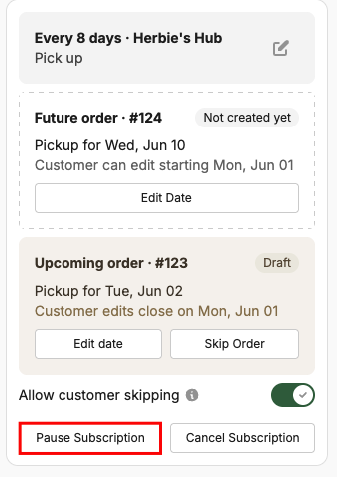
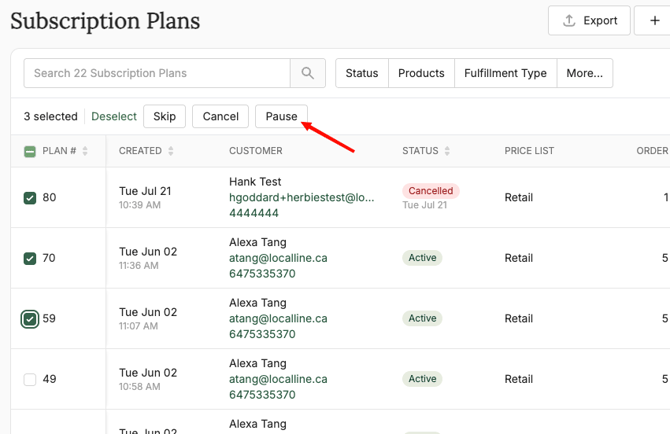
Pausing can be done individually from the plan edit view, or in bulk from the Subscriptions table using the bulk action:
Enable subscriptions in your storefront
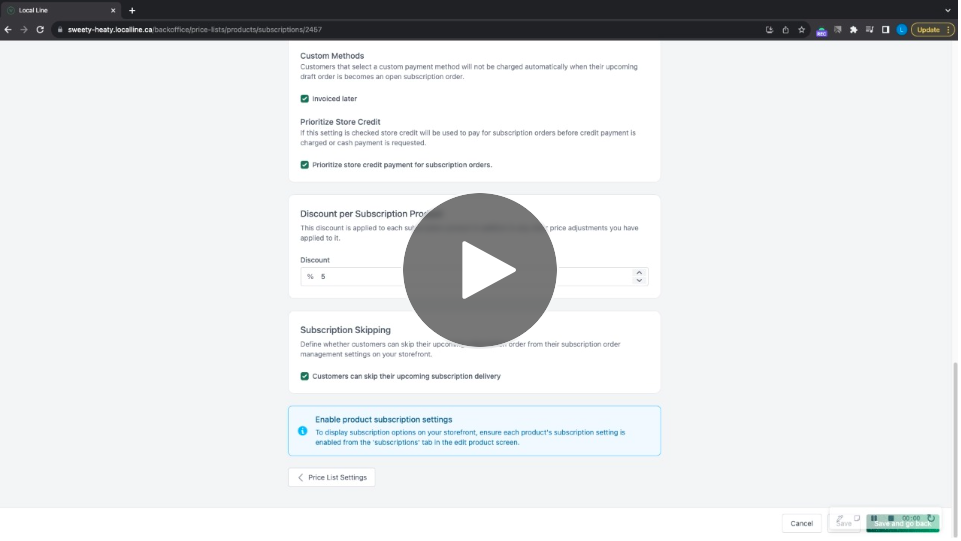
To offer subscriptions in your storefront you must have subscriptions enabled in your price list subscription settings. In those settings you define things like the fulfillment and payment options for all subscription plans created from that price list.
You must enable subscriptions at the product level to indicate them with a Subscribe label in your storefront and allow your customers to subscribe directly in the storefront.
Prerequisite: Enable subscriptions in your back office
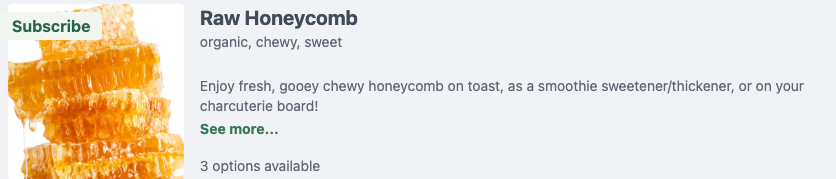
- Go to the Products page
- Click the Edit button
- Go to the Subscriptions tab
- Select which price list(s) you want the product to be available to subscribe from (only price lists with subscriptions enabled are shown)
- Select which package(s) of the product you want to offer for subscriptions
- Select whether you want the product to be available as a subscription only or as both a subscription and a one-time purchase
- Optional - check the Offer a subscription discount option to automatically apply a discount to this product when it is purchased as a subscription. This discount will be saved on the plan and apply to all orders generated by the plan
- Click Save and go back
Export Subscription plan data
You can export your Subscription plan data to a .csv file that includes these fields:
- Plan #
- Created
- Customer
- Status
- Price List
- Frequency
- Products (count)
- Total
- On the Subscriptions page, click Export in the top right.
How your customer subscribes on your storefront
Both registered and unregistered customers that check out as a "guest" (if you have guest checkout enabled) can subscribe from your storefront. However, an unregistered customer will not be able to view or manage their subscription directly since they have not created an account. If they create an account it will automatically be connected to their existing subscription as long as the same email address is used.
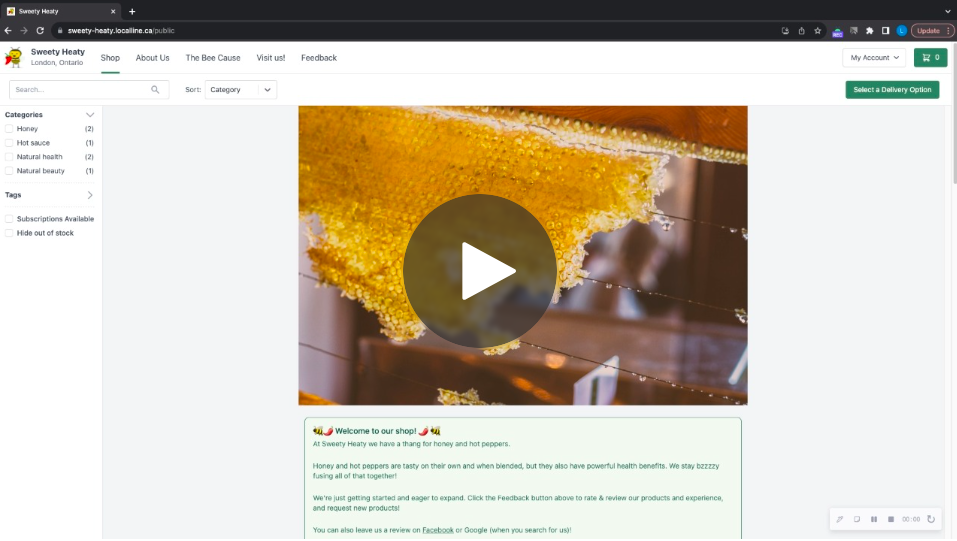
When you enable subscriptions on your storefront, all products that you have enabled subscriptions for at the product level display a Subscribe label on the product image, along with a button for Subscription options which leads to the product detail view where your customer can see whether the product is subscription only or can be a one-time purchase
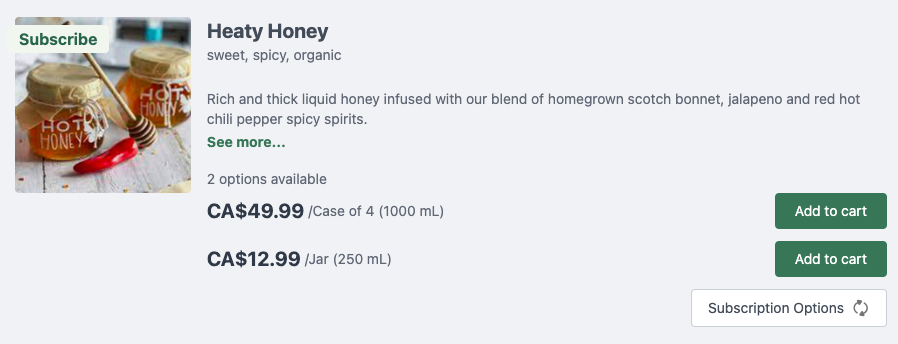
Your customer can begin the checkout process by clicking the Select a delivery option button in the top right of the page, or by clicking Add to cart next to a product.
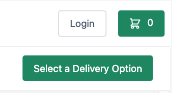
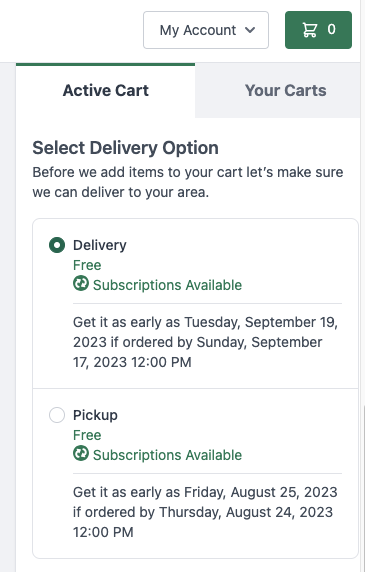
Before anything is added to their cart, they are prompted to specify their fulfillment option. This is so that the system can check if that option is eligible for a subscription product they may be trying to add to their cart.
If they have selected a fulfillment option that is not eligible for a subscription product they want to add to their cart, an alert is displayed to tell them:
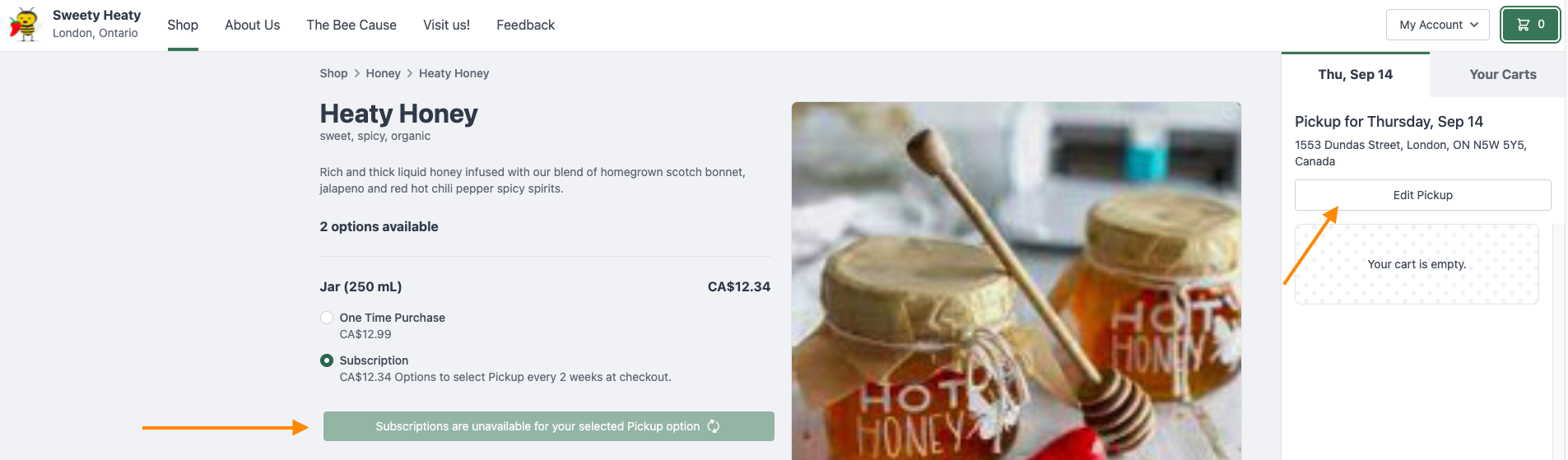
They can edit their fulfillment option in their cart to try another option, or add the product as a one time purchase if you have enabled that setting in your back office product settings.
Once they have finished adding products to their cart, they can proceed to checkout and will be able to select a fulfillment frequency.
When your customer subscribes to a product on your storefront they receive an email confirming the subscription. They also receive an email notification when a subscription order is skipped by them or you, or if their subscription plan is cancelled.
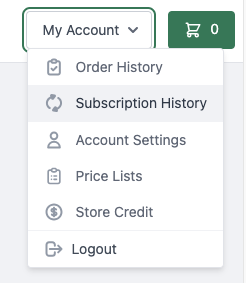
Your registered customers can also view, modify and cancel their subscriptions from their Account settings > Subscription history page or from the Your carts tab in their cart.
Your customer sees the upcoming draft order in their Your carts tab of their cart, not the currently open subscription order.
Subscription orders that have been skipped are shown in the Your carts view and your customer has the option to Unskip and reopen if the order cutoff has not been reached yet. Subscription orders with an expired fulfillment date are not displayed in the Your carts view.
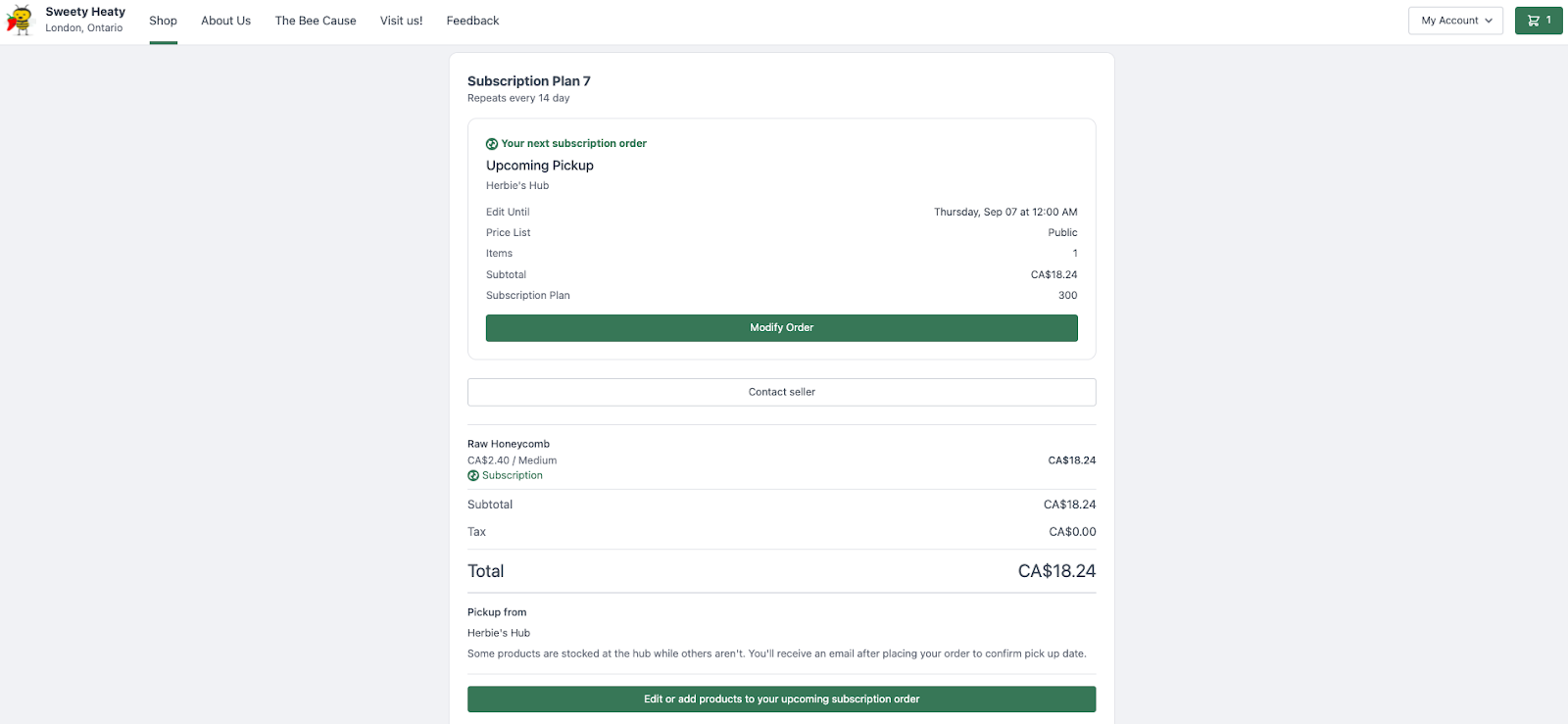
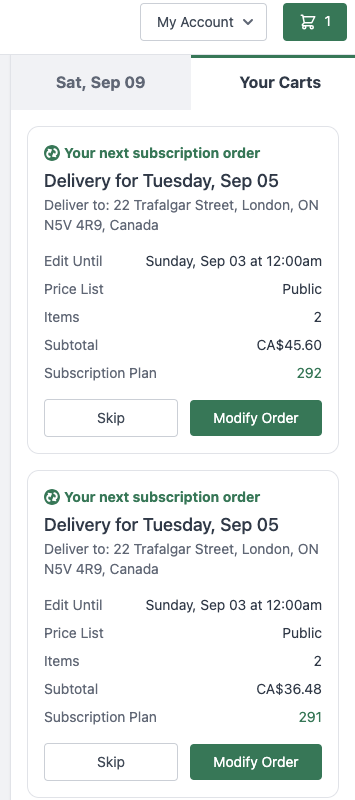
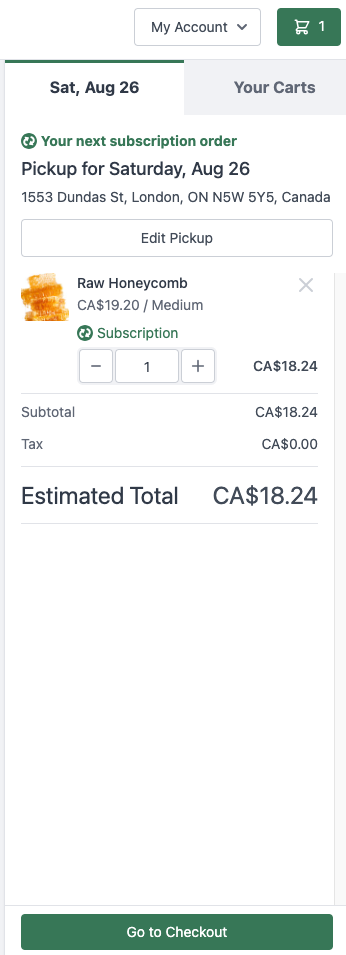
When making changes to an upcoming subscription order, the changes are automatically saved and the customer does not need to take any additional steps -- a notification is displayed to confirm the changes were saved. Once the deadline for editing their order has been reached, the order will open so it can be fulfilled.

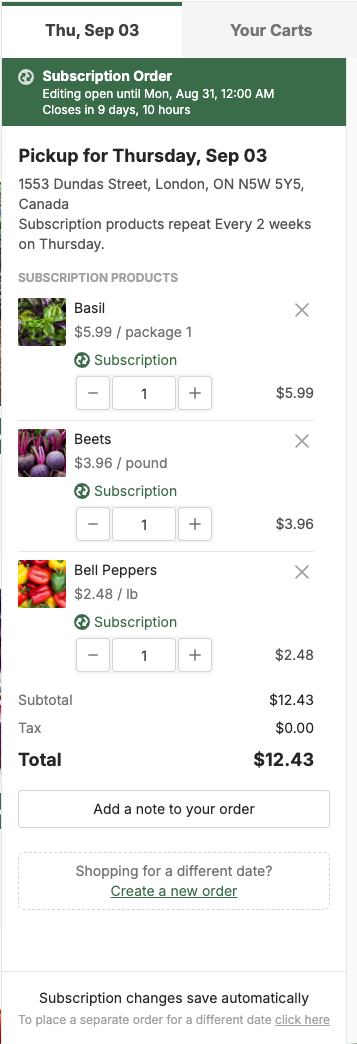
The cart will show a banner at the top indicating it's a subscription order and the cutoff date for any changes, as well as the fulfillment date and location for the order: