
Local Line is available in multiple languages so you can manage your account in the language you're most comfortable with. This article covers how to change your interface language and what each setting affects.
What language settings control
Your language setting changes the language of the LocalLine admin interface - menus, buttons, labels, and system messages you see when logged in.
It does not change:
- Your storefront language - what customers see when they shop. Storefront language is set separately.
- Your product and content text - anything you've typed in (product names, descriptions, email templates, page content) stays in whatever language you wrote it in.
- Emails sent to customers - these follow the customer's language preference, not yours.
Supported languages
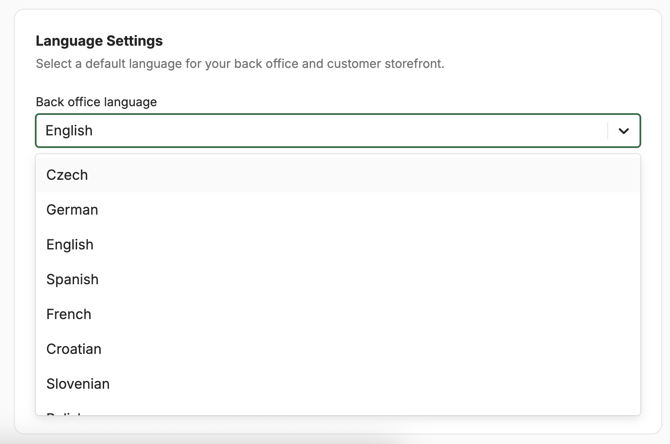
Local Line currently supports the following languages for the admin interface:
- English
- French
- Spanish
- Croatian
- Czech
- German
- Slovenian
- Polish
If you require an additional language, contact support@localline.ca to let us know.
Changing your back office language
- Click 'Settings' in the bottom-left hand corner.
- Scroll to the bottom of the 'Business Info' section.
- Click the language dropdown to select your preferred Back office language.
- Click 'Apply'.
The interface will update immediately. You don't ned to log out of refresh.
Language settings for team members
Each user on your account chooses their own language independently. If you invite a team member who prefers a different language, they can set it from their own account settings without affecting yours.
This is useful for businesses with multilingual teams — for example, a food hub with English-speaking operators and Spanish-speaking warehouse staff can have each team member work in their preferred language.
Changing your storefront language
To change the language your customers see on your storefront, you need to update your storefront language settings instead, not your back office language.
Storefront language settings are located in the back place as your back office language settings. With storefront settings, you can also select multiple available languages so that customers can change your storefront to their preferred language.
Troubleshooting
-
The language didn't change after I selected it - try refreshing your browser. If it still doesn't update, log out and log back in.
-
Some text is still in English even though I switched languages - a small number of niche labels or new features may not yet be translated. If you find untranslated text, please report it to support@localline.ca so we can prioritize the translation.
-
My customers are seeing the wrong language on the storefront - storefront language is controlled separately. See Storefront setup & settings to update it.
Need help?
If you're having trouble switching languages or notice translation errors, contact support@localline.ca with a screenshot and a description of the issue.