
Your login and account settings control how you access Local Line and what your personal user profile looks like. This is separate from your business info, which is what customers see, and from your billing settings, which control your subscription. This article covers everything tied to you as an individual user.
Logging into LocalLine
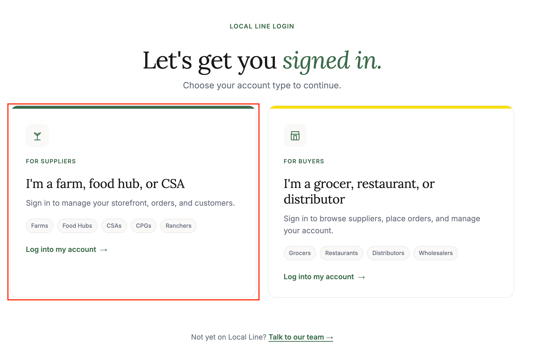
- Go to www.localline.co/login
- In the 'For Suppliers' box, click 'Log into my account ->'
- Enter the emails address associated with your account
- Enter your password
- Click 'Sign in'
If you have multiple LocalLine accounts (for example, you manage more than one business), you'll be prompted to choose which account to open after logging in.
Resetting a forgotten password
- On the login page, click 'Forgot password?'
- Enter the emails address associated with your account and click 'Reset Password'
- Check your inbox for a password reset email (it usually arrives within a minute - check your spam folder if it doesn't)
- Click the reset button in the email
- Enter a new password and confirm it
- Login with your new password
Password reset links expire after 24 hours. If yours expires, simply click 'Forgot password?' again to receive a new one.
Changing your password
To change your password while logged in:
- Click on your profile icon in the bottom-left corner.
- Select 'My Account'.
- Enter your old password, then your new password.
- Click 'Save new password'.
We recommend using a unique password of at least 10 characters that includes a mix of letters, numbers, and symbols.
Managing notification preferences
Choose which notifications you receive about activity in your LocalLine account.
- Click your profile icon in the bottom-left corner.
- Select 'Your Account' and go to 'Notifications'
- Toggle on or off any of the listed notifications.
- Click 'Apply'
These notification settings apply only to you as a user - not to your customers, and not to other team members on your account. Each user manages their own preferences.
Logging out
To log out, click the profile icon in the bottom-left corner and select 'Logout'. You'll be returned to the login page. For security, you should log out whenever you're using a shared or public computer.
Need help?
If you're locked out of your account or can't access the email address tied to your login, contact support@localline.ca with your business name and the email address on file. Our team can help you regain access.