
Store credit is a balance on a customer’s account that they can use to pay for orders on your storefront. It replaces spreadsheets and email threads for tracking money customers have already paid you or that you owe them.
Store credit is included in the Premium and Ultimate plans, and is available as an add-on for Core. See Plan & pricing overview.
Common ways to use store credit
- Buy-down CSA: Members pay for their share up front. You add the share value as store credit, and they shop your storefront through the season, paying with their credit.
- Prepaid orders: Customers pay ahead for future orders, like a holiday order or a season of deliveries.
- Refunds and make-goods: If an order was cancelled or something went wrong, give the customer store credit instead of a payment refund.
- Gift cards and promotions: Add credit as a gift, a loyalty reward, or a goodwill gesture.
How customers use store credit
When a customer has store credit, it’s applied automatically at checkout to any products on the order that are eligible for store credit. Customers don’t need to do anything to use it.
- If the eligible items cost less than their credit, they’re covered, and the remaining credit stays on the account
- If the eligible items cost more than their credit, the credit is applied, and the customer pays the rest with another payment method
- Items that aren’t eligible for store credit are paid with another payment method
Credit used on an order is deducted from the balance automatically.
In some cases (i.e. products sold by weight, or subscriptions), customers still need to select a payment method at checkout, even if credit covers the whole order. That way, any extra amount can be collected if the order changes and the customer doesn't have enough credit to cover the difference.
Choosing which products are eligible
New products are eligible for store credit by default. You can change this per price list. For example, a CSA price list might allow store credit for produce but not for gift cards or merchandise.
- Go to the Products page and open the product
- In the Add Product to Price Lists section, find the price list
- Turn Valid for store credit on or off for that price list
- Click Save
Tip: If CSA members should only use their credit on certain products, turn off eligibility for everything else on the CSA price list, and let members know.
Adding or adjusting a customer’s credit
- Go to the Customers page
- In the customer’s row, click their store credit balance
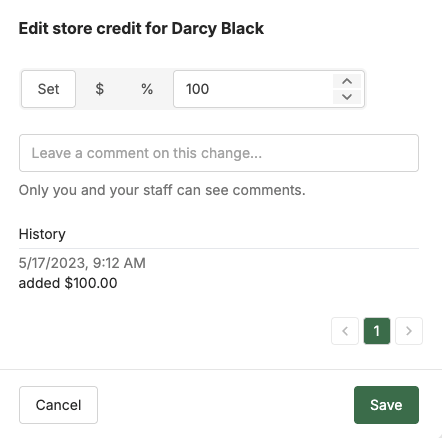
- Choose how to update the balance:
- Set: replace the balance with a new amount
- $: add or remove a dollar amount
- %: add or remove a percentage of the current balance
- Enter the amount
- Click Save
Adjusting credit for many customers at once
This is the fastest way to load CSA shares at the start of a season.
- On the Customers page, select the customers. Tip: filter by a tag, like “CSA Member,” first. See Customer tags.
- Click Edit store credit
- Choose Set, $, or %, and enter the amount
- Click Save
For example, to give 50 CSA members a $500 share, select them all and use Set with 500.
Giving store credit instead of a refund
Orders can’t be refunded directly to store credit. To give credit instead of refunding the payment:
- Cancel the order and choose No refund. See Refunds & cancellations.
- On the Customers page, click the customer’s store credit balance
- Use $ to add the order amount to their balance
- Click Save
The customer gets an email letting them know their balance was updated, as long as the store credit notification is on.
Viewing credit history
Click a customer’s store credit balance on the Customers page to see a History of every update. Each entry shows the date and time, whether the balance went up or down, and the amount.
Notifying customers
Customers get an email whenever you update their store credit balance by default. To turn off this email, go to your Storefront automated email notification settings. See Customer email notifications.
Tip: If you’re loading credit for a new CSA season, leave the notification on. It’s an easy way to let members know their credit is ready to use.
Best practices
- Tag customers who use store credit. A tag like “CSA Member” makes bulk updates and emails quick.
- Use Set for share resets, $ for top-ups and corrections. Set gives everyone the same starting balance. $ adds to or removes from whatever they already have.
- Explain how credit works. Let CSA members know what credit can be used for, and what happens to leftover credit at the end of the season.
- Check balances before season end. Review balances so you can follow up with members who have credit left.
Troubleshooting
A customer’s credit wasn’t applied at checkout. Check that the products on the order are eligible for store credit on the price list the customer ordered from. Check Valid for store credit for each product on that price list, in the product’s Add Product to Price Lists section. In order for customers to use their store credit, they must be Active and logged into their account. If their account is Unregistered they won't be able to log in -- send an account invite email to them so they can register.
Credit only covered part of the order. Either the order total was more than the customer’s balance, or some items on the order aren’t eligible for store credit. Check the customer’s balance and each product’s eligibility.
A customer didn’t get a store credit email. Check that the store credit notification is turned on in your Storefront automated email notification settings.
What’s next
- Customer tags: group customers for bulk store credit updates
- Refunds (full & partial): refund a payment instead of issuing credit
- Customer email notifications: manage the store credit update email
Need help? Contact support@localline.ca or use the in-app chat.