
Welcome to Local Line. Setting up your account properly from the start makes everything else — adding products, taking orders, processing payments — significantly easier. This guide walks you through the essential setup tasks to complete before you launch.
Before you begin, you'll need:
- Your Local Line login credentials (email and password).
- Your business name, address, and email.
- Your business tax ID.
- A logo file (recommended: PNG or JPG, square format, at least 500x500px)
Step 1: Login for the first time
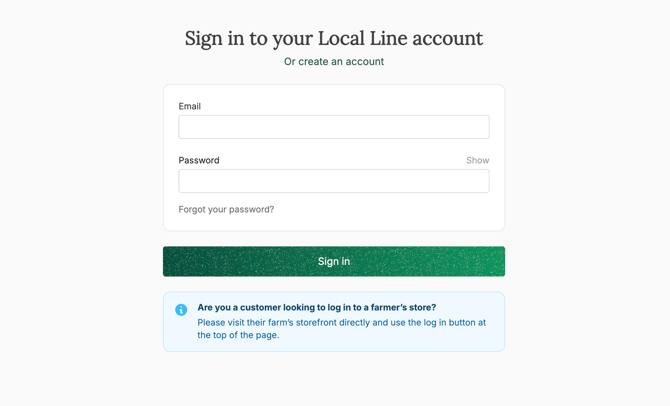
- Go to www.localline.co/login and select 'For Suppliers'.
- Enter the email address associated with your account.
- Enter your password and click 'Sign in'.
If you've forgotten your password, click 'Forgot password?' to reset it.
Once logged in, you'll land on your Home tab, which is your home base for managing everything in Local Line.
Step 2: Complete your business profile
Your business profile is what customers see on your storefront and what appears on invoices and emails.
- From the dashboard, click Settings in the left-hand menu (at the bottom).
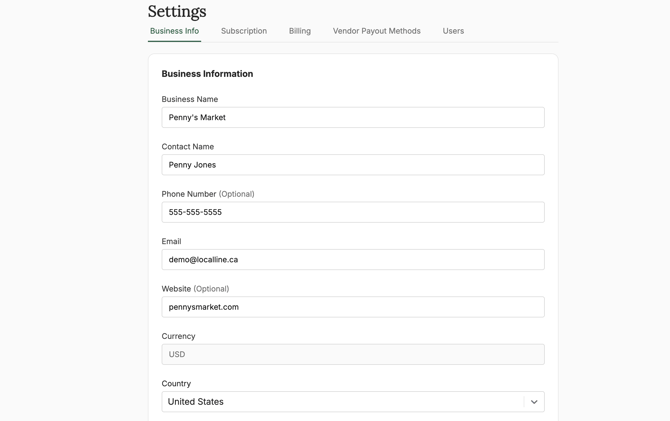
- Select Business profile and fill in:
- Business name (this appears on your storefront)
- Business address (used for tax calculations and shipping origin)
- Contact email (where customer inquiries are sent)
- Phone number
- Business logo (upload your file)
- Click Save
Step 3: Language settings
Select which languages you want available to customers on your storefront.
- Scroll to the bottom of the Business Info section in Settings.
- Select your backoffice language.
- Select your storefront language.
- Add any additional storefront languages you want to have available.
- Click 'Apply'.
Step 4: Confirm your subscription and billing
Confirm your tier, add premium features, and finalize your billing internal (monthly or annual).
- Click on 'Settings' in the bottom left.
- Click 'Subscriptions' at the top, next to 'Business info'.
- Confirm that you're on the correct subscription tier: Core, Premium, or Ultimate.
- Add any desired premium features.
- Select 'monthly' or 'annual' billing. Annual payments receive 20% off the monthly price.
Next, click on 'Billing' at the top and add your business credit card.
Step 5: Invite your team
If others on your team will manage products, orders, or fulfillment, invite them now.
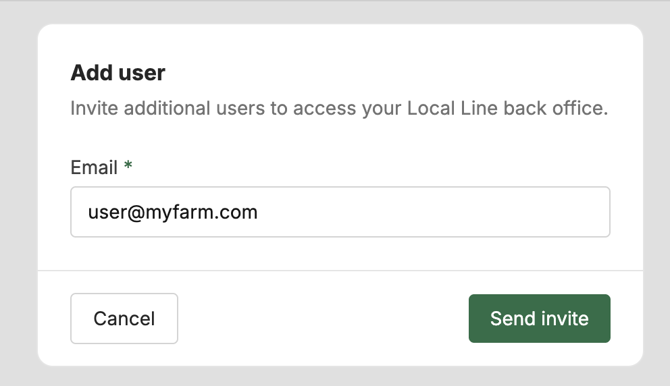
- In Settings, go to Users
- Click Invite user
- Enter their email address and select a permission level
- Click Send invite
They'll receive an email with instructions to set their password and log in.
What's next
With your account configured, you're ready to start building out your store:
- Next: review our pre-launch checklist.
- Start adding & editing products, either in bulk or one by one.
- Create fulfillment plans — set up delivery and pickup options.
If you run into issues, contact support at support@localline.ca or use the chat icon in the bottom-right corner.