
Not every customer pays online. Custom payment methods let you offer other ways to pay, like cash at pickup, a cheque on delivery, e-transfer, or invoicing on account, with your own instructions for each.
Common custom payment methods
- Cash at pickup or delivery
- Cheque on delivery, or by mail
- E-transfer, Venmo, or Zelle
- Invoice for wholesale customers on payment terms
- SNAP/EBT, if you're authorized to accept it and have a terminal
Adding a custom payment method
- Go to Payment > Payment Methods
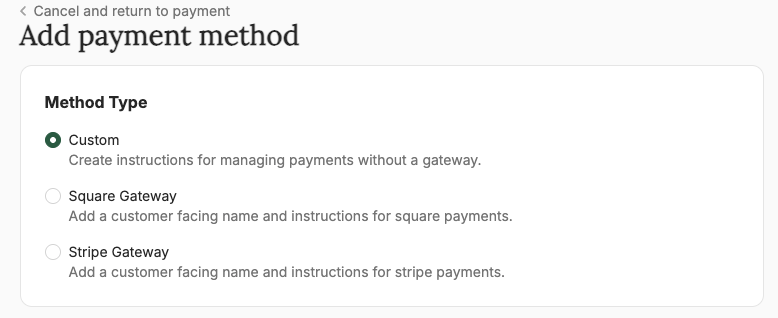
- Click Add payment method
- Select Custom
- Enter a Payment method name, like "Cash at pickup" or "E-transfer." Customers see this name at checkout.
- Enter Instructions that tell customers how to pay (see below)
- Optionally, enter a Fee Title and amount to add a fee to orders paid this way. The fee can be a fixed amount or a percentage of the order total. Note: The fee is calculated on the order total, including any fulfillment fees and taxes.
- In Select Price Lists, choose where this payment method is available
- Click Save
Writing payment instructions
Instructions appear in three places:
- At checkout
- In the customer's order confirmation email
- On the customer's invoice
Include everything the customer needs to pay you. For example:
- E-transfer: "Send payment to payments@yourfarm.com. Include your order number in the message."
- Cheque: "Make cheques payable to Green Acres Farm. Hand it to the driver on delivery."
- Cash: "Please bring exact change to pickup."
Payment terms
To give customers time to pay, set Days until payment is due for the payment method in each price list's settings. See Creating & editing price lists.
When an order is still unpaid after its due date, its payment status changes to Overdue. If the Payment is overdue notification is turned on, the customer is emailed a reminder. See Customer email notifications.
Marking orders paid
Orders paid with a custom payment method stay Unpaid until you update it. When you receive payment:
- One order: open the order, and click Mark as paid in the Payment panel
- Many orders: select them on the Orders page, and click Charge/mark paid
If the Order paid notification is turned on, the customer is emailed when you mark their order paid.
Tip: Create a saved view on the Orders page for unpaid orders by payment method, like "Unpaid e-transfers," to check what's outstanding each week. See Viewing & managing orders.
Refunds
When you cancel an order paid with a custom payment method and choose to refund it, the order is marked Refunded. Refunds for custom payment methods can't be automatically processed, return the money to the customer yourself. See Refunds & cancellations.
Changing the order of payment methods at checkout
Payment methods appear at checkout in the order set in each price list's settings. Drag the handles in the Payment Methods section to reorder them. See Creating & editing price lists.
Editing or deleting a custom payment method
On the Payment Methods page, click the dot menu for the payment method, then click Edit payment method or Delete payment method.
To stop offering a payment method on one price list without deleting it, edit the method and deselect that price list.
What's next
- Accepting card & ACH payments: let customers pay online
- Creating & editing price lists: set payment terms for each price list
- Sending & downloading invoices: send customers invoices with your payment instructions
Need help? Contact support@localline.ca or use the in-app chat.