
If you already use Stripe, you can connect it to LocalLine so customers can pay by card at checkout. Payments are processed by Stripe, and payouts go to the bank account connected to your Stripe account.
Before you begin
- You need a Stripe account. If you don't have one, create one at stripe.com.
- Stripe accepts cards only. To accept ACH or EFT bank payments, use LocalPay. See LocalPay setup.
Fees and payouts
Processing fees and payouts are handled entirely by Stripe. The fee is Stripe's standard API processing fee. LocalLine doesn't add any fees to Stripe payments.
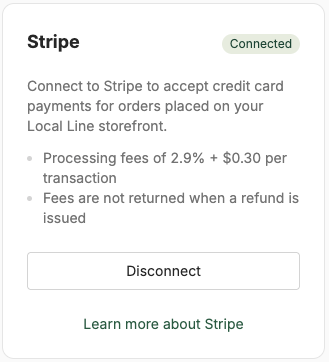
Processing fees aren't returned when you issue a refund.
Step 1: Connect Stripe
- Go to Payment > Payment Gateways
- Click Connect on the Stripe card
- Sign in to your Stripe account, and follow the prompts to connect it
When it's connected, the Stripe card shows Connected in green, and the Connect button changes to Disconnect.
Step 2: Add Stripe to your checkout
- Go to Payment > Payment Methods
- Click Add payment method
- Select the Stripe gateway
- Enter a Payment method name, like "Credit card." Customers see this name at checkout.
- Optionally, add Instructions, and a Fee Title and amount
- Select the price lists where this payment method is available
- Click Save
See Accepting card & ACH payments for more on payment methods and fees.
Using more than one payment gateway
You can connect Stripe, Square, and LocalPay at the same time. Each payment method uses one gateway, and you choose which price lists each method appears on.
Tip: If you have more than one gateway connected, offer only one card payment method on each price list, so customers aren't confused by two card options. Customers will also see each gateway in the Saved cards section of their account.
Refunds
- Full refunds: cancel the order and choose to refund it. See Refunds & cancellations.
- Partial refunds: issue them in your Stripe dashboard. Partial refunds aren't recorded on the order in LocalLine. See Refunds (full & partial).
Disconnecting Stripe
Click Disconnect on the Stripe card.
Before you disconnect, keep in mind:
- Payment methods aren't removed automatically. Delete or edit any payment methods that use Stripe, so customers don't see them at checkout.
- Customers can't use their saved cards. Saved cards are stored in Stripe, so they won't be available while Stripe is disconnected.
- Subscription plans that use Stripe will fail. Their payments can't be processed until you reconnect Stripe, or change the plans to another payment method. See Managing subscription plans.
If you reconnect the same Stripe account later, customers' saved cards become available again.
Switching to another payment gateway
If you move from Stripe to LocalPay or Square:
- Connect the new gateway, and add a payment method for it
- Assign the new payment method to your price lists, and remove the Stripe payment method
- Update subscription plans that use Stripe to the new payment method
- Let customers know they'll need to re-enter their card details. Saved cards don't move between gateways.
Tip: Switch at a quiet time, like between ordering windows, and keep Stripe connected until subscription plans have been moved, so no payments fail.
What's next
- Accepting card & ACH payments: set up card payment methods and fees
- LocalPay setup: accept cards and bank payments with lower fees
- Refunds (full & partial): issue partial refunds through Stripe
Need help? Contact support@localline.ca or use the in-app chat.