
Every subscription in LocalLine is a subscription plan: one customer's recurring order, with its products, schedule, and payment method. Customers create plans when they subscribe on your storefront, and you can create plans for customers in your back office.
This article covers creating and managing plans. To set up subscriptions first, see Setting up subscriptions.
The Subscriptions page
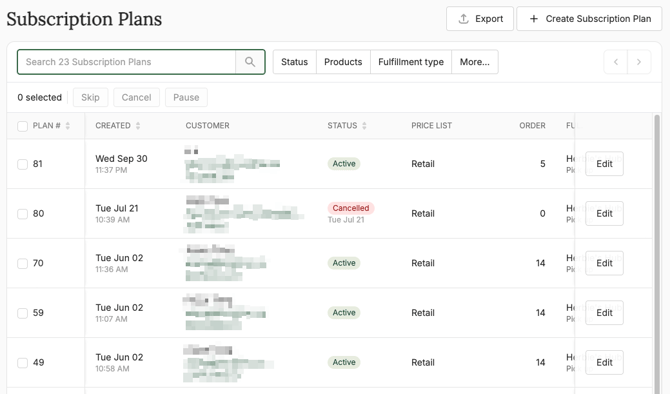
Click Subscriptions in the left navigation to see all your plans. Each plan has a status:
- Active: creating orders on schedule
- Paused: temporarily skipping orders
- Cancelled: permanently stopped
Search by customer name or email. Filter by status, product, fulfillment type, pickup location, delivery plan, fulfillment date, next fulfillment status, order tags, or price list.
To open a plan, click Edit beside it.
Creating a subscription plan
Create a plan for customers who sign up by phone, email, or in person. It works much like logging an order.
- On the Subscriptions page, click Create subscription plan
- Select the customer, or click New customer to add one
- Choose the price list. Only price lists with subscriptions turned on are shown.
- Click Add products to choose what the customer is subscribing to. Subscription discounts are applied automatically. You can also click Custom item to add an item, fee, or service.
- In Fulfillment, choose delivery or pickup, the delivery plan or pickup location, and the frequency
- In Payment, choose the payment method
- Optionally, in Back office details, add order tags and notes. These details will be included on each order generated by the plan.
- Click Save or Save and go back. If you are creating several plans at once, you can enable the Create another option, and then click Save & create next to start a new plan.
The first order is created right away, inventory is deducted, and the customer is charged. The customer can't edit this first order. They can change their orders from the second one on.
Tip: If the fulfillment plan, date, or frequency you need isn't available, check the fulfillment plan's schedule and the price list's subscription settings. The first date you can select is determined by the fulfillment plan schedule as well as lead days and days in the future settings, so you may need to temporarily adjust these if the date you want to select isn't available. See Setting up subscriptions.
Editing a plan
Open the plan to change:
- Products and quantities
- Fulfillment plan and frequency
- Payment method
- Whether the customer can skip orders
- Prioritize store credit payment for subscription orders
Changes to products and pricing also update any draft order that's already been created.
Changing a product's price elsewhere: If you change a product's price on the product itself, or with a price adjustment on the price list, plans use the new price for future orders. Draft orders that have already been created keep the old price. To update a draft order, edit the plan directly.
Removing a product from many plans: there's no way to remove a product from all plans at once. Open each plan that includes it and remove it.
Save the changes once you’re done.
Changing a plan's price list
- Open the plan and remove all of its products
- Choose the new price list
- Add the products
- Update the fulfillment plan, frequency, and payment method if needed, since the options may be different on the new price list
- Save the plan
Changing the customer
You can't move a plan to a different customer. Cancel the plan, then create a new one for the right customer.
Customer addresses
If you change a customer's address on their customer record, their subscription plan isn't updated. Update the delivery address on the plan too.
Changing the date of an upcoming order
- Open the plan
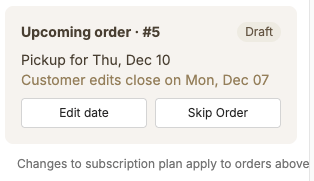
- In the Upcoming order card, click Edit date
- Choose a new date. Only dates available on the fulfillment plan's schedule can be selected. The card shows when the order will open and when it will be fulfilled.
- Click Update
This only changes the fulfillment date of that specific upcoming order and not any subsequent orders. The plan keeps creating orders on its regular schedule. To change when the next order after that is created, click Edit date in the Future order card.
Skipping and reactivating orders
To skip an upcoming order:
- One plan: open the plan, and click Skip Order in the Upcoming order card
- Many plans: select them on the Subscriptions page, and click Skip
The customer is emailed, and the skipped order is never opened. The next order is created on schedule. You can only skip an upcoming draft order, not orders further in the future.
To undo a skip, open the plan and click Reactivate on the order card.
Customers can also skip and unskip orders from your storefront, if skipping is allowed on their plan.
Pausing and resuming a plan
Pause a plan when a customer will be away for a while. While a plan is paused, orders aren't generated.
- To pause: open the plan and click Pause Subscription, or select plans on the Subscriptions page and click the Pause bulk action button
- To resume: open the plan and click Resume Subscription. If the upcoming order was skipped when the plan was paused and you want to keep the order, click Reactivate on the order card.
Pauses and resumes can't be scheduled. Pause and resume each plan when needed.
Cancelling a plan
Cancelling stops all future orders from the plan, and can't be undone. If the customer may come back, pause the plan instead.
- One plan: open the plan and click Cancel subscription
- Many plans: select them on the Subscriptions page and click Cancel
When a plan is cancelled:
- Open subscription orders stay open
- Draft orders are skipped
- The customer is emailed. You can turn off this email in Storefront > Settings.
- You're emailed too. Each team member can turn this off in their Account > Notifications settings.
Plans don't have an end date. To end a subscription, cancel it.
You can't delete a customer who has an active subscription plan.
Editing a subscription order
Once a draft order becomes a subscription order, edit it from the Orders page like any other order. Orders paid by card or ACH can't have their line items changed, but you can still change the fulfillment plan and date. See Editing orders.
Exporting plans
On the Subscriptions page, click Export at the top-right to download a CSV of your plans. It includes the plan number, created date, customer, status, price list, frequency, number of products, and total.
What's next
- Setting up subscriptions: change price list and product subscription settings
- Subscription errors & troubleshooting: fix common subscription issues
- Using boxes with subscriptions: manage subscription boxes
Need help? Contact support@localline.ca or use the in-app chat.