
A run is a pick list and a pack list for a specific fulfillment date range, built from one of your templates. You'll usually generate a new run for each pack day, for example "Thursday Home Delivery" for this Thursday.
New to pick and pack lists? Start with What are Live Pick & Pack Lists?
Generating a run
- Go to Orders > Pick & Pack
- Click View runs beside the template
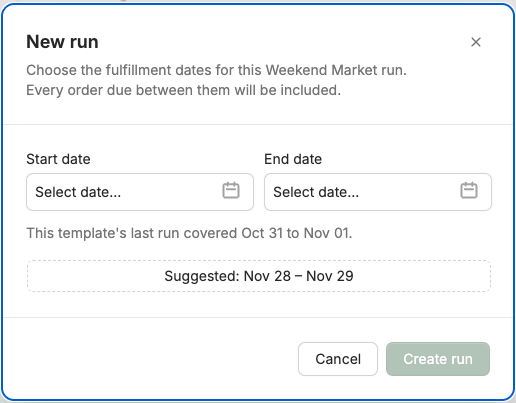
- Click New run
- Set the range of fulfillment dates. LocalLine suggests dates based on your template. Click Suggested:, followed by the dates, to accept them, or enter your own.
- Click Create run
LocalLine generates the pick list and pack list for all orders that match the template's filters and fall within the fulfillment date range.
You can also generate the first run when creating a template, by entering a date range. See Creating & managing templates.
Viewing runs
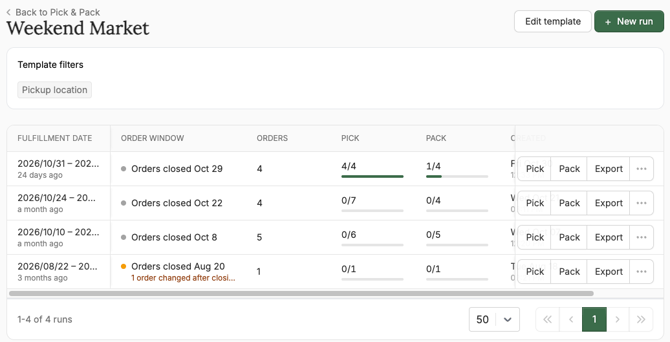
Click View runs beside a template to see all of its runs. For each run, the table shows:
- Fulfillment date range: the fulfillment dates the run covers
- Order window: the latest order cutoff for the delivery plans and pickup locations in the template
- Orders: the number of orders in the run
- Created: when the run was generated
- Progress: how many orders have been picked and packed, for example 3/10, with a progress bar
Click a run to open its pick list and pack list.
How runs stay current
Runs are live:
- Progress updates in real time. When anyone checks off a product or marks an order packed, everyone sees it right away.
- New orders and changes are added automatically. Orders placed, and changes made to existing orders, before the end of the run's fulfillment date range are pulled into the run automatically.
Late orders and changes
Orders placed or changed after the end of the fulfillment date range aren't added to the run automatically. Instead, a banner appears at the top of the pick and pack lists. Click Details to see which orders were added or changed, then decide how to handle them, for example by packing a late order separately.
Tip: Check for the banner before you start packing, and again before orders go out.
Overlapping runs
You can create runs, from the same template or different templates, that cover overlapping dates. Orders can appear in more than one run, which makes it easy to pick or pack the same order twice. Take care to avoid overlapping templates and runs.
Deleting a run
- Go to Orders > Pick & Pack
- Click View runs beside the template
- Click Delete for the run
- Confirm the deletion
Deleting a run doesn't affect your orders in any way. It only removes the pick list and pack list for those dates. If you need to re-generate the run, you can click New run and set the fulfillment date range again.
Best practices
- Generate runs from a consistent template. Using the same template each week means your team always sees the same layout.
- Use the suggested dates. They're based on your template, so they're a quick, reliable starting point.
- Avoid overlapping runs. Keep each order in only one run.
- Delete old runs if you don't need them. It keeps your runs table easy to scan.
What's next
- Using the pick list: pick products with your team
- Using the pack list: pack orders with your team
- Printing & exporting: print slips or export your run
Need help? Contact support@localline.ca or use the in-app chat.