
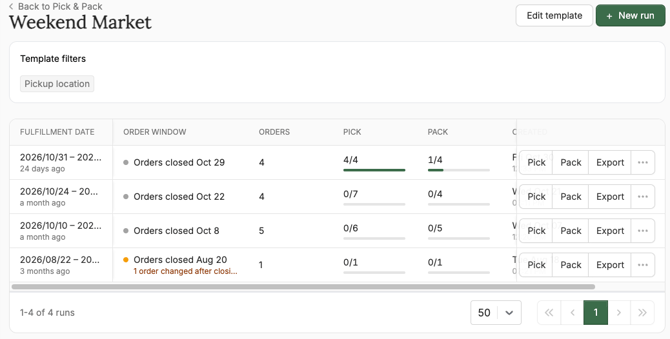
Live Pick & Pack Lists are interactive lists your team works from on pack day. Instead of downloading a file and working from paper, everyone works from the same list in LocalLine. They check off products as they pick and mark orders as they pack, and everyone sees progress as it happens.
Live Pick & Pack Lists are included on every plan. You'll find them under Orders > Pick & Pack.
Pick lists and pack lists
Each run gives you two lists:
- Pick list: the total of each product you need across all the orders in the run. Use it to pull products from your field, cooler, freezer, or shelves.
- Pack list: one card per order, showing exactly what goes into that customer's order, with payment status and notes. Use it to pack each order.
Most teams pick first, then pack. Pickers gather everything needed for the day, then packers divide it into individual orders.
How it works
- Create a template. A template saves which orders to include, such as a specific delivery plan or pickup location, and how each list looks: its columns, sorting, and grouping. You set it up once and reuse it every pack day. See Creating & managing templates.
- Generate a run. Choose a template and a fulfillment date range. LocalLine creates a pick list and a pack list for the matching orders. See Generating a run.
- Pick and pack. Your team checks off products on the pick list and marks orders packed on the pack list. See Using the pick list and Using the pack list.
- Print or export, if you need to. Download picking slips, packing slips, or a CSV, laid out the way your template defines. See Printing & exporting.
Built for teams
- Everyone sees the same runs. Runs are shared with everyone on your LocalLine account automatically.
- Progress updates in real time. When one person checks off an item or marks an order packed, everyone else sees it right away.
- Handle orders without leaving the list. From an order's card on the pack list, you can view the full order, add a note to its order timeline, mark it packed or unpacked, and approve it.
Late orders and changes
Runs pull in new orders, and changes to existing orders, automatically up to the end of their fulfillment date range. If an order is placed or changed after that, the run isn't updated automatically. The change is flagged in a banner instead, so you can review it and decide what to do.
What pick and pack lists don't change
Live lists are a working space for your team. They don't change your orders:
- Checking items off the pick list doesn't change anything on the orders
- Marking an order packed on the pack list doesn't change the order's fulfillment status. To update fulfillment status, use Edit fulfillment status on the Orders page. See Viewing & managing orders.
Boxes
If you sell boxes, your template controls how they appear: as the box only, the box and its contents, or the contents only. See Creating & managing templates.
Live lists vs. order exports
The Orders page also has pick list and pack list exports. Those are fixed files, generated once. Live Pick & Pack Lists stay up to date, can be viewed by any back office users, and let your team track progress as they work. You can still export a run as a CSV or PDF whenever you need paper. See Order exports and Printing & exporting.
What's next
- Creating & managing templates: set up your first template
- Generating a run: create pick and pack lists for a fulfillment date range
Need help? Contact support@localline.ca or use the in-app chat.