
Boxes and subscriptions work well together. You can run a CSA or weekly box program where customers subscribe once and the contents change with the season. You update the box, and each subscriber's next order picks up the new contents automatically.
This article covers how to offer a box as a subscription, how subscription orders are created, and when box contents are locked in.
Before you begin
You'll need:
- A box added to at least one price list. See Box Builder.
- Subscription settings configured on that price list, including fulfillment methods, frequencies, and payment methods. See Setting up subscriptions.
A box follows the subscription settings of the price list it's sold on.
Step 1: Turn on subscriptions for the box
- Go to Products > Boxes and edit the box
- Click the Subscription Settings tab at the top of the page
- Select the price lists where you want to offer the box as a subscription. Only price lists the box has already been added to are available.
- For each price list, choose how customers can buy the box:
- Sell box with the option to make a one-time purchase or subscribe: Customers choose either option
- Sell box as a subscription only: Customers can only subscribe. This works well for CSA shares.
- Click Save
You can use different options on different price lists. For example, you might offer a box as a one-time purchase on your public price list and as a subscription only on your CSA price list.
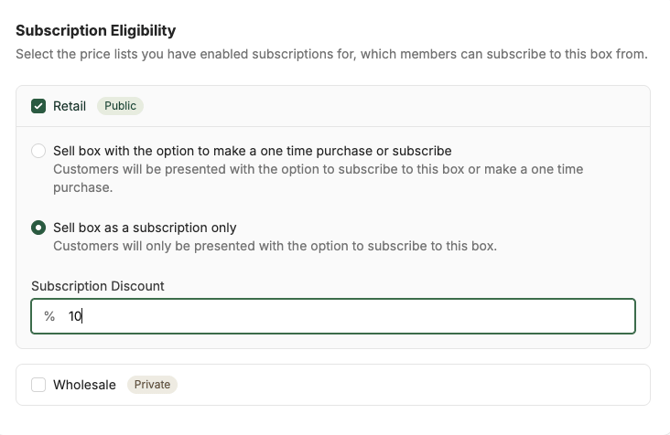
Note: If you don't see the price list you want to enable subscriptions on displayed, make sure you have enabled subscription on that price list, and that you have added the box to the price list as well.
How subscription orders are created
Understanding this timeline helps you know when to update a box.
1. First order. When a customer subscribes, their first order is created right away and payment is collected. It includes the box contents at the time they subscribed.
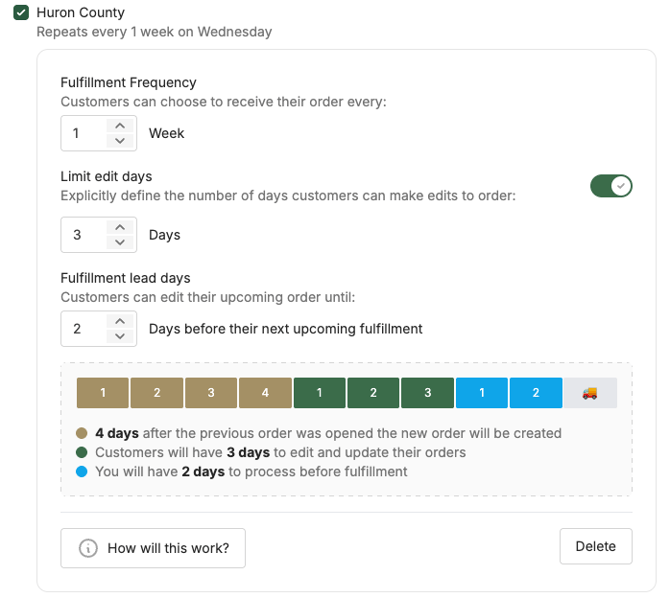
2. Draft order. Before each upcoming fulfillment date, LocalLine creates the next order as a draft. This happens within the edit window you set on the price list. The draft appears in the customer's cart on your storefront, where they can:
- Change their box swaps for that cycle (see Box swaps)
- Add one-off purchases to the order
3. Cutoff. At the order cutoff, the draft is opened for processing, customers paying by credit card or ACH are charged, and the box contents are locked into the order. After this point, customers can't make changes, including swaps.
4. After cutoff. You can still edit individual orders in the back office the same as your one-time orders (i.e. as long as they haven't been paid by credit card or ACH). See Editing boxes on orders.
Updating box contents for the next cycle
To change what's in the box for upcoming deliveries:
- Go to Products > Boxes and edit the box
- Update the contents, and any swap options if needed
- Click Save
Changes apply to one-time orders created or opened after you save, and to upcoming subscription draft orders, including draft orders that have already been created. Keep this in mind, if your customer has already made changes to their swap options for their upcoming order, these choices will be reset when you change the box contents. Orders that have already been opened aren't updated.
Important: Update the box before the edit window so every subscriber's order for that cycle gets the new contents. If you miss the cutoff, you'll may need to edit each affected order individually.
Changing swaps each cycle
Customers who subscribe to a box with swap options can choose different swaps for each delivery. They open their upcoming subscription order on your storefront, modify it, and pick their swaps any time before cutoff.
When you update a box's contents for a new cycle, review its swap options at the same time so they still make sense with what's in season.
Using approval with subscription boxes
If your box includes products that need final weights, or you want to review each box before customers are charged, turn on Orders with this box require approval in the box's Box Status section. You'll approve each order after packing, and payment is collected on the final amount. See Selling by weight. Note that this option needs to be enabled on the box -- if it's only enabled on one or more of the content products, the order won't be opened in the Approval status.
Best practices
- Set a weekly routine. Pick a set day before your edit window to update the box, such as right after you know what's ready to harvest.
- Update the box, not every order. One edit is much faster than editing dozens of orders afterward.
- Tell subscribers what's coming. A short email with this cycle's contents helps customers decide whether to swap or add extras.
- Use a dedicated CSA price list. Keeping subscription-only boxes on their own price list makes it easier to manage subscription settings separately from your regular store.
What's next
- Setting up subscriptions: configure subscription settings on your price lists
- Box swaps: let subscribers customize their boxes
- Managing subscriptions plans: view, pause, or cancel subscriptions
Need help? Contact support@localline.ca or use the in-app chat.