
Boxes show up differently depending on who's looking. Customers see a simple box line item, while your packing team sees exactly what goes inside each box. This article explains how boxes appear on invoices, labels, exports, and vendor payouts.
Invoices and customer order history
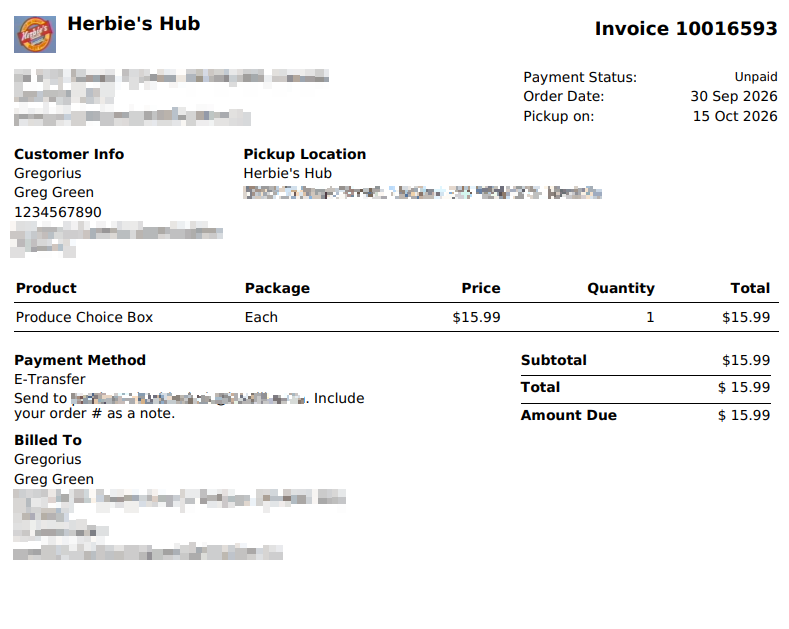
On customer invoices and in a customer's order history on your storefront, only the box line item is shown: the box name, quantity, and price. The individual contents aren't listed.
This keeps invoices clean and easy to read. Because changes you make to box contents don't appear line by line, let customers know about any substitutions directly. See Editing boxes on orders.
Packing labels
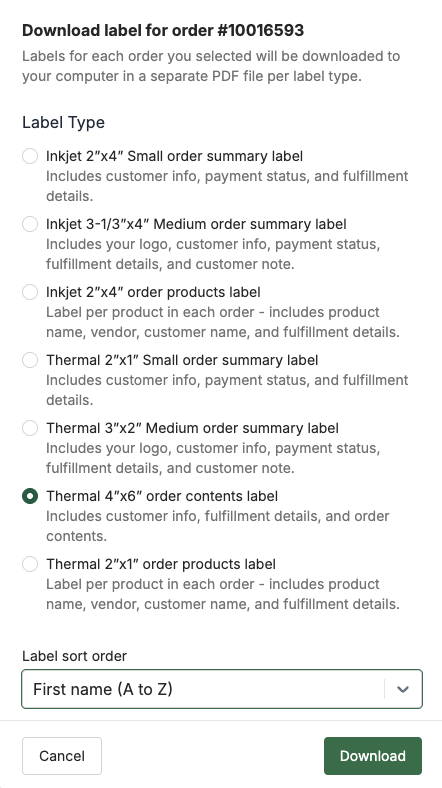
The Thermal 4"x6" Order Contents Label lists everything in an order, including the full contents of each box, so your team can pack accurately.
Each label includes:
- Customer information: name and address
- Fulfillment details: delivery or pickup information, including scheduled date and location
- Order contents: every item in the order, including box contents
To print labels:
- Go to the Orders page
- Select the orders you want labels for using the checkboxes
- Choose the Download Labels bulk action
- Select Thermal 4"x6" Order Contents Label
Pick lists
Pick lists combine box contents with regular items so you know the total quantity of each product to pull. No extra columns are added.
For example, if 20 boxes each contain 1 lb of carrots and customers also ordered 15 lb of carrots on their own, the pick list shows 35 lb of carrots.
Pack lists
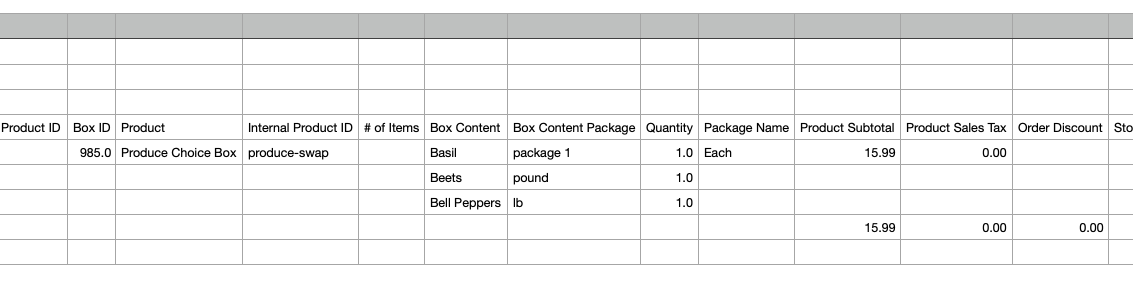
Only one of the CSV export options will show the contents of boxes, Packlist (by customer, by product line item). All other pack list exports will only show a single line for the box. When the orders you export include at least one box, the pack list adds two columns:
- Box Content: the name of the product in the box
- Box Content Package: the package of that product
The Quantity column shows how much of each box item to pack. If none of the exported orders contain a box, these columns aren't added.
Internal Box ID on exports
If you've added an Internal Box ID in a box's Back Office Details, it appears on some order exports. This is useful when matching boxes to records in another system.
Vendor payouts for food hubs
If your boxes include either managed or shared products from vendors, the vendor payout report will report sales of these items as expected, but only if the box itself has not been assigned to a vendor. If the box is assigned to a vendor, then only the sale of the box itself will be reported for that vendor in the payouts export.
See Vendor payouts.
What's next
- Generating pack lists: create per-customer pack lists
- Editing boxes on orders: make changes to individual boxes
Need help? Contact support@localline.ca or use the in-app chat.