
Sometimes a single customer's box needs to be different from everyone else's. A CSA member has an allergy, a product ran short after cutoff, or a box includes meat that needs final weights. You can edit box contents on any individual order without changing the box itself or anyone else's order.
This article covers how to find orders with boxes, edit their contents, and finalize changes.
To change a box for all future orders, edit the box itself instead. See Box Builder.
Finding orders with boxes
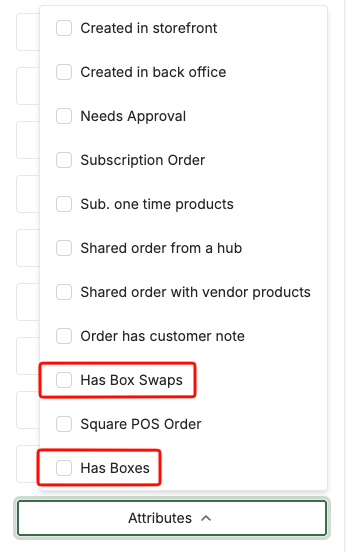
On your Orders page, orders containing a box are marked with a beige box icon in the Attribute column.

Additionally, if a customer has swapped an item in a box, this will also be indicated in the Attribute column.

Both of these attributes can be filtered on so you can quickly find orders that vary from your default box contents.
How boxes appear on an order
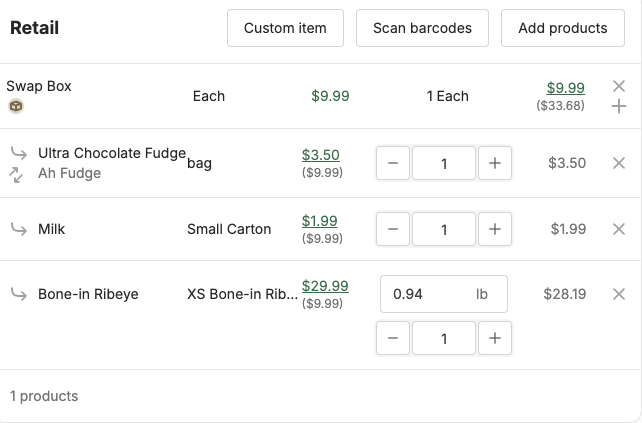
Open the order to view or edit it. Each box appears as a main line item with its contents nested underneath.
The box line item shows:
- The box name
- Base price, quantity, and total box price
- The total cost of goods, which is the combined base price of everything in the box. This is for your reference only and isn't shown to customers.
The nested contents show each product in the box with its package, quantity, and base price. These prices are also for your reference only.
Adding items to a box
- Open the order
- Click the + icon on the box line item
- Select the products and packages to add
- Click Save Changes at the bottom of the order
Removing items from a box
- Open the order
- Find the item in the nested contents
- Lower the quantity to zero, or click the x icon beside it
- Click Save Changes
Adjusting quantities and final weights
You can change the quantity of any item in the box directly from the nested contents.
Each product keeps its own track-by and charge-by settings. For products charged by weight, you can enter the actual weight here, just like any other variable-weight item. See Selling by weight.
Click Save when you're done.
How edits affect price
Editing a box's contents updates the total cost of goods, but not the total box price. The customer pays the same box price unless you change it.
To change the box price on an order:
- Click the total box price, shown in green with an underline
- Enter the new price
- Click Save
You can only change the box price if the order hasn't been paid.
Adding another box
You can't change a box's quantity from the box line item. To add another box to the order, use the Add products action.
Approving the order
If the box has Orders with this box require approval turned on, approve the order after making your changes so payment can be collected. See Selling by weight for how approval and payment work.
Inventory
Changes to box contents automatically update inventory for each product. If you remove an item, it goes back into stock. If you add one, it's deducted.
What customers see
On customer invoices and in their storefront order history, only the box line item is shown, not the individual contents. Your edits won't show up as line-by-line changes to the customer, so it's a good idea to let them know about any substitutions.
Edits vs. swaps
- Swaps are chosen by customers on your storefront before checkout, or before cutoff on a subscription order. See Box swaps.
- Order edits are made by you in the back office, including after cutoff when customers can no longer make changes.
Best practices
- Update the box, not every order. If a change applies to everyone, such as a crop failing, edit the box before cutoff instead of editing orders one by one. See Using boxes with subscriptions.
- Tell customers about substitutions. Because invoices show only the box, a quick note avoids confusion at pickup or delivery.
- Keep box value consistent. When you substitute, choose items of similar value, or adjust the box price if the difference is significant.
What's next
- Using boxes with subscriptions: understand when box contents lock into orders
- Boxes on invoices, labels, and exports: see how box contents appear on packing documents
- Editing orders: make other changes to an order
Need help? Contact support@localline.ca or use the in-app chat.