
Fulfillment plans are the ways customers get their orders: your delivery plans and pickup locations. You manage them all from the Fulfillment page.
To set up a new plan, see Setting up pickup locations or Delivery routes & zones.
The Fulfillment page
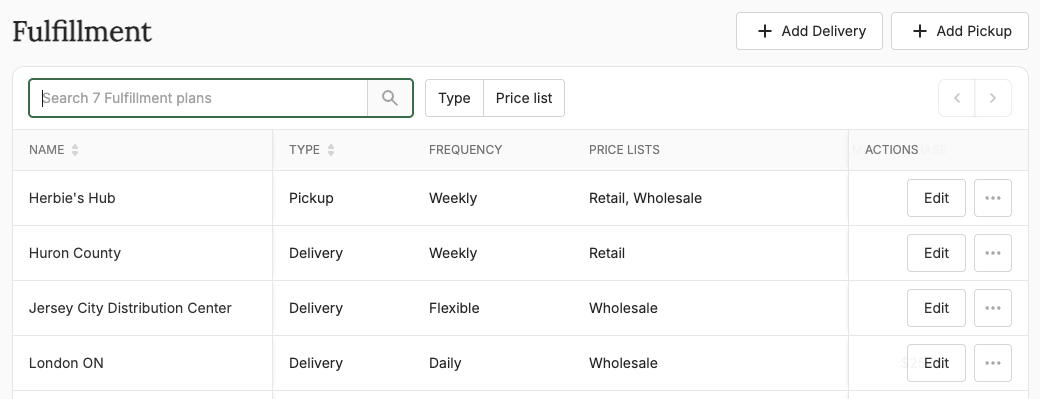
Go to Fulfillment to see all your delivery plans and pickup locations in one table. For each plan, the table shows:
- Name
- Type: delivery or pickup
- Frequency: its schedule
- Price Lists: the price lists it's available on
- Min. Purchase: the minimum order total
- Fee: the delivery or pickup fee
- Visibility: whether it's shown on your storefront
You can search by name, filter by type or price list, and sort by name.
To add a plan, click Add Delivery or Add Pickup at the top of the page.
Editing a plan
- On the Fulfillment page, click Edit beside the plan
- Make your changes
- Click Save
Changes only apply to new orders. Existing orders keep the fees, minimums, and dates they were placed with.
Important: Changes can affect future orders from subscription plans that use this fulfillment plan. If you change its schedule, check that subscription dates and order minimums still line up. See Subscription errors & troubleshooting.
Duplicating a plan
Duplicating is the fastest way to add a plan that's similar to one you already have, like a second market pickup or a delivery zone next to an existing one.
- On the Fulfillment page, click the dot menu for the plan
- Click Duplicate
- Update the name and any settings that are different
- Click Save
A duplicate copies all of the original plan's settings, except subscriptions. If the original is used for subscriptions, turn on subscriptions for the new plan in each price list's Subscriptions tab. See Setting up subscriptions.
Hiding a plan
To stop offering a plan for a while, like during an off-season, turn off Plan visibility in the plan's settings instead of deleting it. You can turn it back on at any time.
Deleting a plan
- On the Fulfillment page, click the dot menu for the plan
- Click Delete
- Confirm the deletion
When you delete a plan:
- Existing orders aren't affected. Orders placed with the plan keep their fulfillment details.
- You can no longer filter by it. The plan won't appear in filters on the Orders page or elsewhere.
- Subscription plans that use it stop working. Before you delete a plan, find subscription plans that use it by filtering the Subscriptions page, and change them to a different plan. See Managing subscription plans.
Tip: If you might need the plan again, or want to keep filtering past orders by it, hide it instead of deleting it.
Changing the order plans appear at checkout
The order of delivery plans and pickup locations at checkout is set in each price list's settings. Drag the handles in the Delivery Plans and Pick up locations sections. See Creating & editing price lists.
What's next
- Setting up pickup locations: add a new pickup location
- Delivery routes & zones: add a new delivery plan
Need help? Contact support@localline.ca or use the in-app chat.