
Customers can shop your storefront with or without an account. Registered customers get more, though. They can log in to see their order history, access private price lists, and manage their own settings.
This article explains registered and unregistered customers, how to invite customers to register, and what customers can do once they log in.
Registered vs. unregistered customers
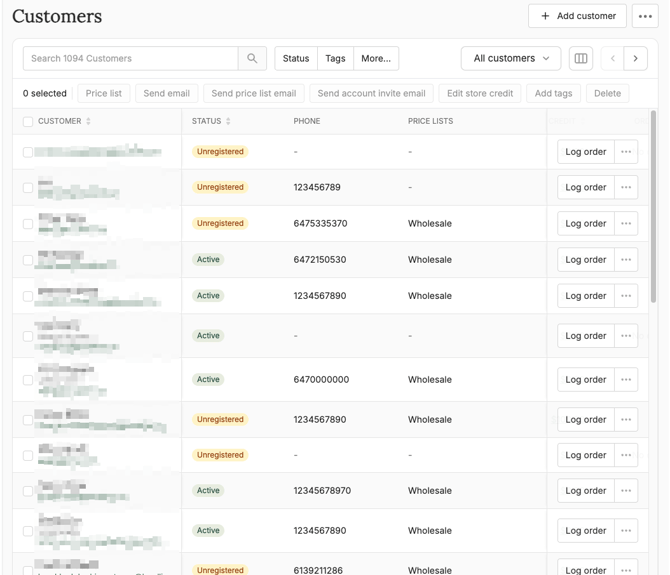
Every customer on your Customers page has one of two statuses:
- Active: The customer has registered on your storefront and set a password. They can log in.
- Unregistered: The customer doesn’t have a password and can’t log in. This includes customers you add or import yourself, and customers who check out as guests.
What registered customers can do
When customers log in to your storefront, they can:
- View their order history, and pay for orders with payment due later
- Access private price lists they’re a member of
- Switch between price lists, if they belong to more than one
- Manage their account settings, including their email marketing preferences
Unregistered customers can still shop your public price lists as guests, but only if guest checkout is turned on. It’s off by default. To turn it on, go to Storefront > Settings. Guests can’t see private price lists.
How customers become registered
Customers become Active in any of these ways:
- They sign up on your storefront. If you’ve turned on the New customer signup notification (My Account > Notifications), you’ll get an email when someone registers.
- They accept an account invite. The invite email includes a link to set a password and finish setting up their account.
- They register with an email you already have. If an unregistered customer creates an account using the same email address, their existing record becomes Active. Their past orders stay attached.
Sending account invites
Invite customers you’ve added or imported, so they can log in.
When adding a customer:
In the Preferences section, check the box to send an invitation to register. See Adding & managing customers.
When importing customers:
Enter “True” in the Send account invite column of the import template.
For existing customers:
- On the Customers page, select one or more unregistered customers
- Click Send account invite email
The customers get an email with a link to your storefront, where they can set a password and finish registering.
Tip: An account invite email is different from a price list invite email. The account invite asks customers to register. The price list invite tells existing customers they’ve been added to a price list and links them to it. You can send a price list invite email to an unregistered customer, but if the price list is private, they will be unable to access it unless they register their account and log in. See Assigning customers to price lists.
Email marketing preferences
Customers who register on your storefront are automatically opted in to marketing emails from you, like price list update emails.
- You can check or change a customer’s preference when editing them, in the Preferences section
- Customers can change it themselves in their storefront Account Settings
Customers who’ve opted out don’t receive price list update emails. See Emailing customers for how opt-outs affect other emails you send.
Helping customers who can’t log in
Start with these checks:
- Their status is Unregistered. They haven’t set a password yet. Send them an account invite email.
- They forgot their password. They can click Forgot your password? on your storefront’s login page to reset it.
- They’re using a different email address. Check the email on their customer record.
- They’ve been disabled or deleted. Disabled and deleted customers can’t log in. See Adding & managing customers. If you need to restore a deleted customer account, please contact support@localline.ca.
If a customer can log in but can’t see the price list they expect, see Price list troubleshooting.
What’s next
- Adding & managing customers: add and edit customer records
- Assigning customers to price lists: give customers access to private price lists
- Customer email notifications: see which automated emails customers receive
Need help? Contact support@localline.ca or use the in-app chat.