
Most suppliers don't take orders around the clock. You might take orders Monday to Thursday for a Saturday market, or close your store between seasons. Opening and closing a price list lets you control exactly when customers can order.
This article covers what open and closed mean, how to open or close a price list manually, and how to set an automatic schedule.
What open and closed mean
- Open: Customers can view the price list and place orders.
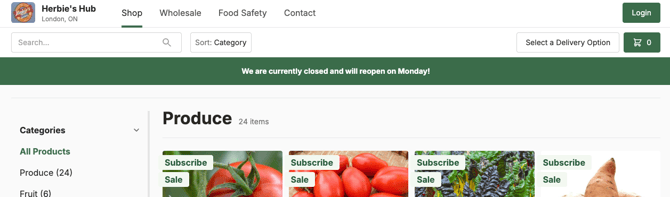
- Closed: Customers can still view the price list and browse products, but they can't place orders. A store closed banner appears at the top of the page.
Keeping a closed price list viewable lets customers plan their next order and check what you'll have available, even when you're not taking orders.
Open/closed vs. active/inactive
These are two separate settings:
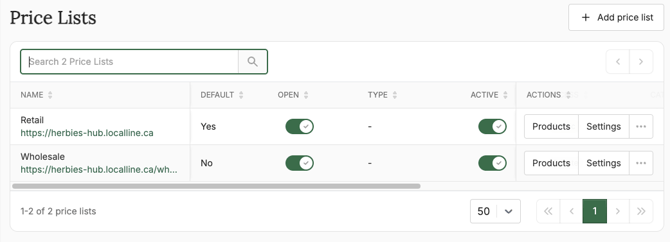
- Open/closed controls whether customers can place orders. Use it for your regular ordering windows.
- Active/inactive controls whether the price list is available at all. Use it while setting up a new price list, or for one you're no longer using. You'll find it under Visibility Settings. See Creating & editing price lists.
For example, a weekly market price list usually stays active all season and opens and closes each week.
Opening or closing a price list manually
You can open or close a price list in two places.
From the Price lists table:
- Go to the Price lists page
- Use the open/closed toggle on the price list's row
From the price list's settings:
- On the Price lists page, click Edit settings next to the price list
- Go to the Open/Close tab
- Set the price list to open or closed
The change takes effect right away.
Note: You can't open or close a price list manually while it's on a schedule. To switch to manual control, turn off the schedule first.
Opening and closing on a schedule
If your ordering windows follow a weekly pattern, set a schedule so the price list opens and closes automatically.
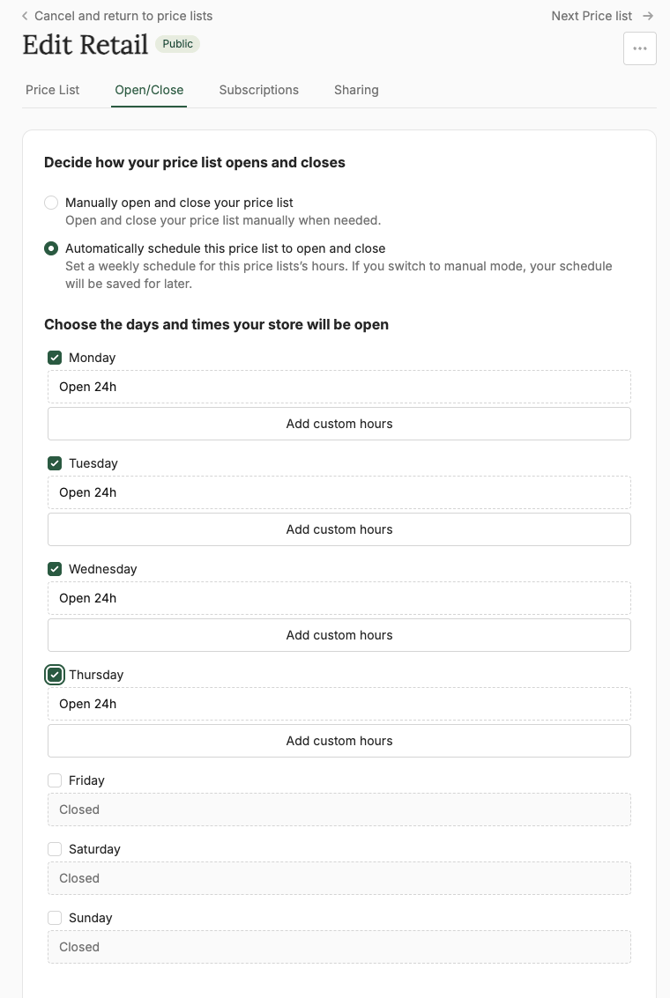
The schedule is weekly, and you set each day separately:
- Open 24 hours: check the box beside the day
- Open during custom hours: check the box, then click Add custom hours and set the opening and closing times
- Closed: uncheck the box beside the day
All times are in your time zone.
This means you can build ordering windows that fit your operation. For example, you could open Monday and Tuesday, close Wednesday and Thursday while you harvest and pack, and open again Friday and Saturday.
To set a schedule:
- On the Price lists page, click Settings next to the price list
- Go to the Open/Close tab
- Choose the Automatically schedule this price list to open and close option to enable the schedule
- For each day of the week, check or uncheck the box, and click Add custom hours for any day that isn't open 24 hours
- Click Save
The price list opens and closes on this schedule every week until you change or turn off the schedule.
Important: While a schedule is on, you can't open or close the price list manually. To make a one-time change, like closing early because you've sold out, turn off the schedule, then open or close manually. Remember to turn the schedule back on afterward.
Tip: Your price list schedule controls when customers can order. Delivery and pickup cutoffs are set separately, in the schedules for each delivery plan and pickup location, and define what fulfillment dates are available for customers to select. For example you may need to cut orders off for Saturday on Thursday, but you can still accept orders for Sunday through Friday. See Delivery routes & zones and Setting up pickup locations.
Customizing the store closed banner
When a price list is closed, a banner is displayed at the top of the page. Use it to tell customers when you'll reopen, or where else to find you in the meantime.
- On the Price lists page, click Settings next to the price list
- Go to the Open/Close tab
- Below the open/close settings, enter your store closed banner message
- Click Save
Example messages:
- "Orders are closed while we harvest and pack. We reopen Friday at 8:00 AM!"
- "We're on our winter break. See you in the spring!"
- "Sold out for this week, thank you! Orders reopen Monday."
The banner's background color matches the color used for your storefront's buttons and navigation links. To change it, go to Storefront > Customization and update that color.
Common scenarios
- Weekly ordering window: Open Monday morning, close Thursday at noon for weekend delivery or market pickup.
- Seasonal break: Close the price list at the end of your season so customers can still see your products and know you'll be back.
- Sold out for the week: Close the price list early if you've sold out. If it's on a schedule, turn the schedule off first, then turn it back on before your next ordering window.
- Holiday pause: Close the price list during a holiday week. If it's on a schedule, update the schedule, or turn off the schedule, close the price list manually, then turn the schedule back on when you're ready to reopen.
Troubleshooting
Customers say they can't check out. Check whether the price list is closed, either manually or because of its schedule.
The price list didn't open or close when expected. Check the schedule times in the Open/Close tab. All times are in your time zone.
I can't use the open/closed toggle. The price list is on a schedule. Turn off the schedule in the Open/Close tab to control it manually.
Customers can't see the price list at all. The price list may be inactive, or private and the customer isn't a member. Check Visibility Settings, and see Assigning customers to price lists.
What's next
- Creating & editing price lists: update other price list settings
- Delivery routes & zones: set delivery cutoffs and schedules
- Customizing your storefront: change your storefront colors and branding
Need help? Contact support@localline.ca or use the in-app chat.