
LocalLine supports two kinds of product codes:
- Internal product ID (SKU): a reference code for the product, used to match records in your own systems and shown on some exports
- Package codes: a unique code for each package, used for barcode scanning when logging orders and receiving inventory
This article covers how to add both, and how to print barcodes for packages that don't already have them.
Barcode scanning is included in the Premium and Ultimate plans, and is available as an add-on for Core. See Plan & pricing overview.
Adding an internal product ID (SKU)
- Go to the Products page and edit the product by clicking the product name, or the Edit button on the row
- In Back office details, enter a Product ID
- Click Save
When importing products, enter SKUs in the Internal ID column. See Bulk import & export of products.
Adding package codes
Package codes are set per package, so each size of a product can have its own code.
- Go to the Products page and edit the product by clicking the product name, or the Edit button on the row
- At the bottom of the Packages section, check Enable package codes
- Enter a Package Code for each package
- Click Save
Tip: If your package already has a barcode label, click into the Package Code field and scan the label. The code fills in automatically, which saves time and avoids typos.
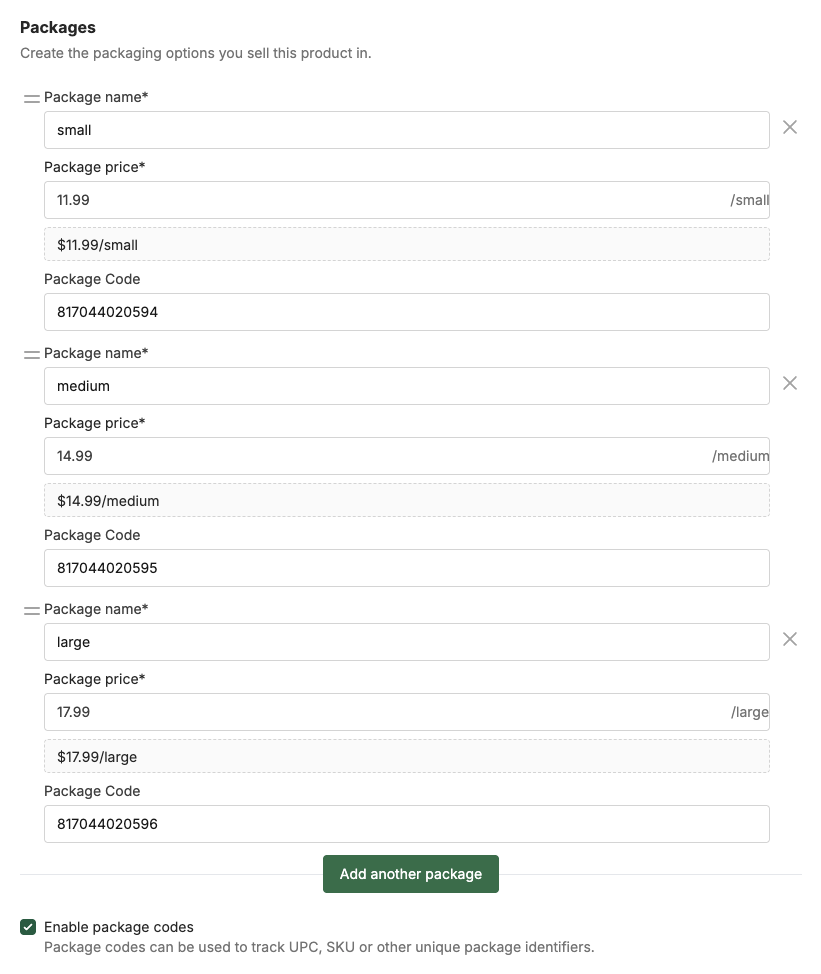
When importing products, use the Package Code column to import a value for this field.
Choosing package codes
- Use existing codes when you have them. If your packages already carry a UPC, EAN, or PLU, enter that number so you can scan the existing label.
- Keep codes under 14 characters if you'll print them. Codes can be any length, but longer codes won't fit on printed labels or scan sheets.
- Use 5-digit numeric codes for weight-embedded barcodes. If you use a scale that prints barcodes with the weight built in, the package code must be numbers only, up to 5 digits. This is typically your SKU or PLU. For these products, you'll also see an option to set how many decimal places your weights use. Match it to your scale's setting. See Barcode scanner setup.
Package codes for food hubs
If you sell products shared by a connected vendor, you can enter your own package codes for those packages to override one the vendor has provided, similar to other product details. If the vendor has set a code, theirs is used unless you enter your own. Your code applies only in your hub account and doesn't change the vendor's code. If you do override the vendor's code, if the vendor later changes their, your code will not be updated.
Printing barcode labels
Print labels to stick on packages that don't already have a barcode.
- On the Products page, select one or more products with package codes
- Click Barcode labels
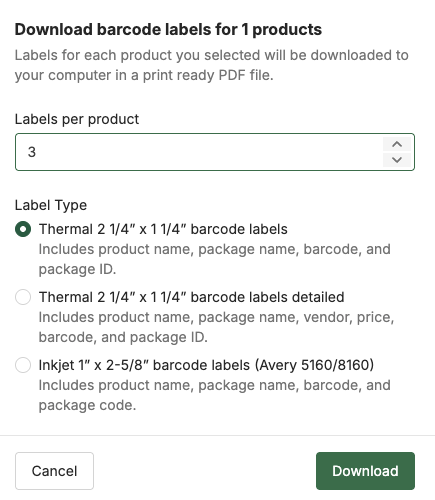
- Set how many labels to print for each selected product (a label will be printed for each package with a package code)
- Three formats are available:
- Thermal: for 2 1/4" x 1 1/4" barcode labels
- Includes product name, package name, barcode and package code
- Thermal: for 2 1/4" x 1 1/4" detailed barcode labels
- Includes product name, package name, vendor, price, barcode and package code
- Inkjet: for Avery 5160/8160 labels (1" x 2 5/8")
- Includes product name, package name, barcode and package code
- Thermal: for 2 1/4" x 1 1/4" barcode labels
- Download and print the PDF
LocalLine prints barcodes in Code 128 format. Only packages with a package code are included.
Printing a scan sheet
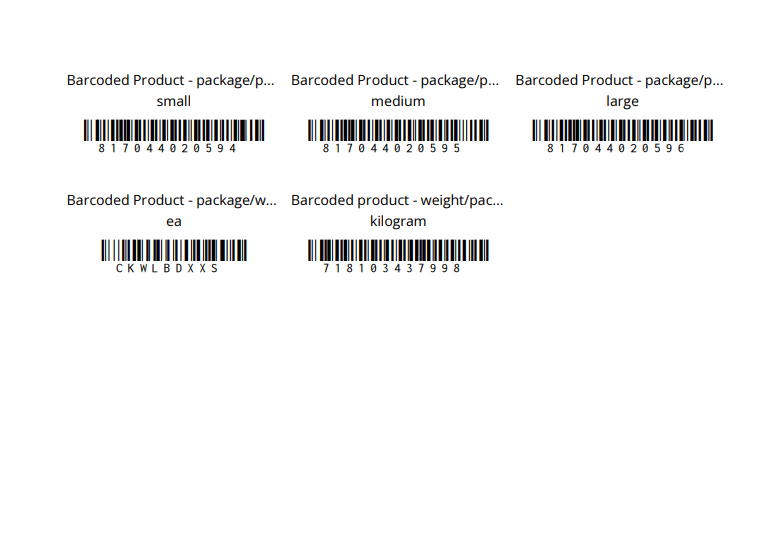
A scan sheet is a printed page with one barcode per package. Keep it at your market stand or checkout counter, and scan from the sheet instead of labelling every package.
- On the Products page, filter or select the products you want to print barcodes for
- Click the dot menu in the top-right corner
- Click Export products
- Choose Product barcode PDF from the dropdown
- Click Download
Only packages with a package code are included.
For products tracked or sold by weight that have a 5-digit package code, the scan sheet uses a weight-embedded barcode based on the package's average weight. Other codes print as standard barcodes.
Using your codes
Once your package codes are set up, you can:
- Scan items onto orders when logging in-person or manual orders. See Barcode scanner setup.
- Scan incoming inventory to add stock as product arrives. See Inventory management.
Troubleshooting
A package isn't on my labels or scan sheet. Check that Enable package codes is checked for the product and that the package has a code entered and saved.
The barcode doesn't fit on the label. Shorten the package code to under 14 characters.
What's next
- Barcode scanner setup: connect a scanner and scan items onto orders
- Inventory management: track stock levels
- Using LocalLine at markets: sell in person with LocalLine's POS
Need help? Contact support@localline.ca or use the in-app chat.