
If you have a large catalog, adding products one at a time takes a while. Bulk import lets you add up to 1,000 new products at once from a CSV file. Export lets you download your catalog for your records, for reporting, or to share with your team.
This article covers both.
Important: Import is for creating new products. An exported product file can't be edited and re-imported, because the export file and the import template use different formats. To update existing products, edit them individually or use the bulk actions on the Products page. See Adding & editing products and Inventory management.
Importing new products
Before you begin
Before you import, keep these limits in mind:
- Up to 1,000 products per file
- No images: You'll add images to each product after the import. See Product photos.
- Some settings are locked after upload: Track inventory by, Item unit, Charge by, Charge unit, and Inventory type can't be changed after a product is imported. To change them later, you can duplicate the product.
Step 1: Download the template
- Go to the Products page
- Click the dot menu in the top-right corner
- Click Import products
- Click Download this template
Step 2: Fill in the template
Required columns are highlighted in green. Each row is one package. To give a product multiple packages, enter the same product name on multiple rows, with different package details on each. LocalLine adds them as packages of one product instead of creating duplicates.
Hover over any column header in the template to see a note explaining what to enter.
Product columns
| Column | Required? | What to enter |
|---|---|---|
| Local Line Product ID | Leave blank for new products | Generated automatically for new products |
| Internal ID | Optional | Your own reference, such as a SKU. Appears as Internal product ID in LocalLine. |
| Product | Required | The product name |
| Track Inventory By | Optional | "item" or "weight" (defaults to item) |
| Item Unit | Required | The unit you track in, such as bunch or pound. If the unit doesn't exist in your account yet, it's created automatically. Note that custom units can only be used when tracking by item; if tracking by weight, a standard unit must be used from one of the following: gram, kilogram, milligram, ounce, pound |
| Charge By | Optional | "item" or "weight" (defaults to item) |
| Charge Unit | Optional | Only if different from the item unit. Custom units can only be used when charging by item; if charging by weight, a standard unit must be used from one of the following: gram, kilogram, milligram, ounce, pound |
| Track Inventory | Optional | "True" to track inventory (defaults to False) |
| Inventory Type | Optional | "package" for separate inventory per package, or "product" for shared inventory (defaults to package) |
| Product Inventory | Optional | Quantity on hand, if Inventory Type is "product" |
| Notify When Inventory Reaches | Optional | Low-stock alert threshold |
| Sold Out Notification | Optional | "True" to get an email when the product sells out (defaults to False) |
| Visible | Optional | "False" to hide from your storefront (defaults to True) |
| Description | Optional | The product description |
| Package Codes Enabled | Optional | "True" to use package codes for this product (defaults to True) |
Package columns
| Column | Required? | What to enter |
|---|---|---|
| Package ID | Leave blank for new packages | Generated automatically |
| Package Name | Required | For example, "5 lb bag" |
| Avg Package Weight | Required if tracking inventory or charging by weight | Average weight of the package |
| # of Items | Required if tracking inventory by item | Number of base units of the product that are required for this package |
| Unit Price | Required | The package price |
| Package Code | Optional | A barcode or tracking code for the package. See Barcodes & SKUs. |
| Package Inventory | Required if using separate package inventory | Quantity on hand for this package, if Inventory Type is "package" |
Tip: importing pre-packed products. For products sold in pre-packed sizes with fixed pricing, like small, medium, and large bags of garlic, set Track Inventory to "True", Inventory Type to "package", Track inventory by to "item" and Charge By to "item". Then enter each size's stock in Package Inventory on its own row. For bulk products portioned at packing, set Inventory Type to "product" and enter one total in Product Inventory.

Step 3: Upload the file
- Save the file containing your product information
- On the Import products screen, click Choose file
- Select your file and click Upload
If there's a problem, an on-screen message explains what's wrong. Update your file and try the upload again.
Step 4: Finish setting up your products
After the import:
- Add images: up to 5 per product
- Add products to price lists and categories: You can assign many products at once using the Price list bulk action on the Products page, or while building your price list.
Exporting products
- Go to the Products page
- Click the dot menu in the top-right corner
- Click Export products
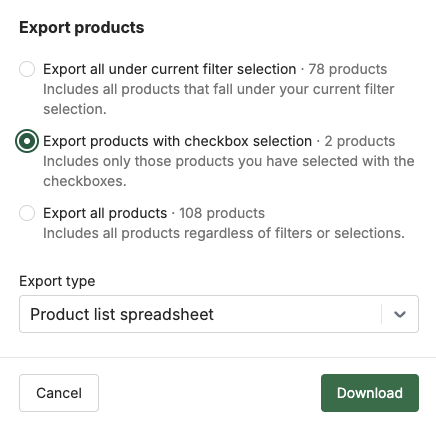
- If you've filtered the table or selected products using the checkboxes, choose whether to export only the filtered products, the selected products, or all products
- Click Download
Your product data downloads as an XLSX file containing two sheets. The first sheet contains information about products and availability, and the second sheet contains information about packages and pricing.
Common uses for an export:
- Keeping a backup of your catalog and pricing
- Sharing a product list with your team, bookkeeper, or a wholesale buyer
- Reviewing inventory and pricing in a spreadsheet
- Importing data into another system
Troubleshooting
My import failed. Read the on-screen error message and check that every required field is filled in. The most common causes are missing package names, unit prices, and missing or invalid units.
My imported products aren't on my storefront. Imported products need to be added to a price list before they appear. Also check that Visible wasn't set to "false."
I set the wrong unit on import. Units can't be changed after upload. Duplicate the product, set the correct unit, and then hide or delete the original.
What's next
- Adding & editing products: edit individual products after import
- Product photos: add images to your imported products
- Adding & removing products from a price list: get your products onto your storefront
Need help? Contact support@localline.ca or use the in-app chat.