
Accurate inventory keeps you from selling products you don't have, and keeps customers from ordering something you can't deliver. LocalLine updates your stock automatically as orders come in, so your storefront always reflects what's actually available.
This article covers how to turn on inventory tracking, choose how packages share stock, set alerts, and update inventory quickly.
How inventory tracking works
When inventory tracking is on for a product, each order deducts the quantity ordered from your available inventory. When inventory reaches 0, the product either shows as sold out or disappears from your storefront, depending on your storefront settings.
Tracking is set per product, so you can track limited items (like a small batch of honey) and leave unlimited items (like a product you make to order) untracked.
Step 1: Turn on inventory tracking
- Go to the Products page and open the product (or click New Product)
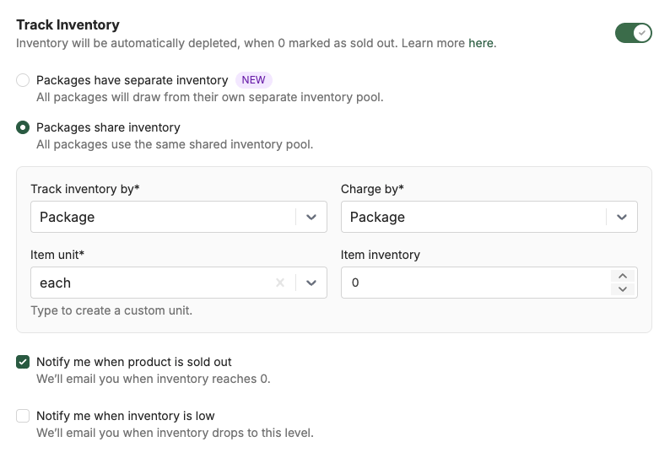
- In the Track inventory section, make sure tracking is turned on. To stop tracking a product, turn it off.
- Choose how you track and charge: by package, by weight, or a combination. See Pricing & units of measure for help choosing. Note that some settings can't be changed on existing products.
Step 2: Choose shared or separate package inventory
If a product has more than one package, decide whether packages draw from one pool of stock or each will have its own:
- Packages have separate inventory: Each package has its own count. This works best for pre-packed items. For example, you have 20 small, 15 medium, and 10 large bags of garlic already bagged. This is the default for new products.
- Packages share inventory: All packages draw from one pool. This works best when you portion at packing. For example, you have 100 lb of ground beef and sell it in 1 lb and 2 lb packs.
Important: This setting can't be changed after the product is saved. To switch, duplicate the product, choose the other option, and hide or delete the original.
Step 3: Enter your inventory
- Shared inventory: Enter the quantity in the Track inventory section
- Separate inventory: Enter the quantity for each package in the Packages section
Step 4: Set alerts
- Notify me when inventory is low: Enter a low-stock threshold, and LocalLine emails you when inventory drops to that level
- Notify me when product is sold out: Turn this on to get an email when the product runs out
- Click Save.
Choosing what customers see when a product sells out
When a tracked product reaches 0, your Show out of stock products setting controls what happens:
- On: The product stays on your storefront, marked as sold out
- Off: The product is hidden until you restock
To change this, go to Storefront > Settings.
Updating inventory from the Products table
You don't need to open each product to update stock. In the Products table, use the inventory controls on any row. Additionally, you can use the checkboxes to select one or more products, then click the Inventory bulk action button at the top of the table. Note that the bulk action will only work for products with shared inventory.
- Set: enter an exact quantity
- +: add to the current quantity
- -: subtract from the current quantity
If you've collapsed the table to one row per product, click Edit Inventory to adjust individual package counts if tracking inventory by package.
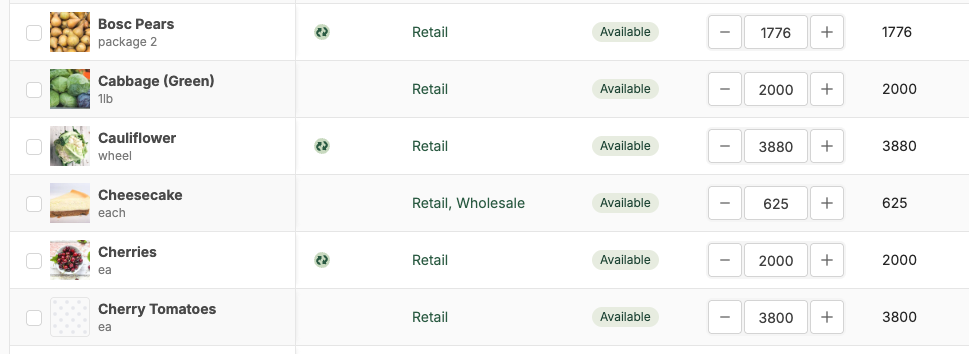
Note: Using a negative adjustment can take inventory below zero if the amount you enter is more than what's on hand. Double-check values before saving.
Products shared by vendors
If you're a food hub, products shared with you by connected vendors show their inventory in your Products table, but you can't edit it. The vendor manages that stock in their own account.
Best practices
- Update inventory before each ordering window opens. Stock counts from last week rarely match this week's harvest.
- Set low-stock alerts on your best sellers. You'll know to restock or close out before customers are disappointed.
- Use shared inventory for bulk products, separate inventory for pre-packed ones. Match the setting to how product actually sits in your cooler or warehouse.
- Use order approval for uncertain supply. For crops where yields are unpredictable, turning on Orders with this product require approval lets you adjust quantities before payment. See Selling by weight.
What's next
- Selling by weight: track and charge variable-weight products
- Bulk import & export of products: update inventory for your whole catalog at once
- Product reports: see which products sell fastest
Need help? Contact support@localline.ca or use the in-app chat.