
If you sell meat, fish, cheese, or produce, your packages rarely weigh exactly the same. A pack of pork chops might be 1.9 lb or 2.1 lb. If you charge a flat package price, you either overcharge customers or give away product. Over a season, those small differences can add up to a meaningful share of your revenue.
LocalLine's variable-weight workflow solves this. Customers order and see an estimated price, you weigh the product at packing, and the customer is charged for the actual weight.
How it works
- You list the product with a price per weight (for example, $9.99/lb) and an average package weight
- The customer orders, and LocalLine shows an estimated total based on the average weight
- You weigh each package at packing and update the order with actual weights
- You approve the order, and the customer is charged the final amount
Step 1: Set tracking and charging options
- Go to the Products page and open the product (or click New Product)
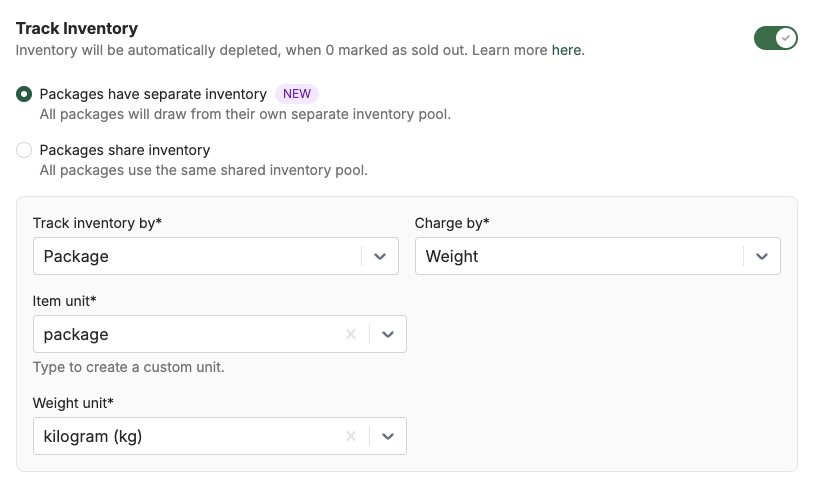
- In the Track inventory section, choose how you track inventory. Either option works for variable-weight products:
- By package: for example, 20 packs of chicken breast
- By weight: for example, 100 lb of chicken breast
- Set the product to charge by weight
Step 2: Set the average package weight and price
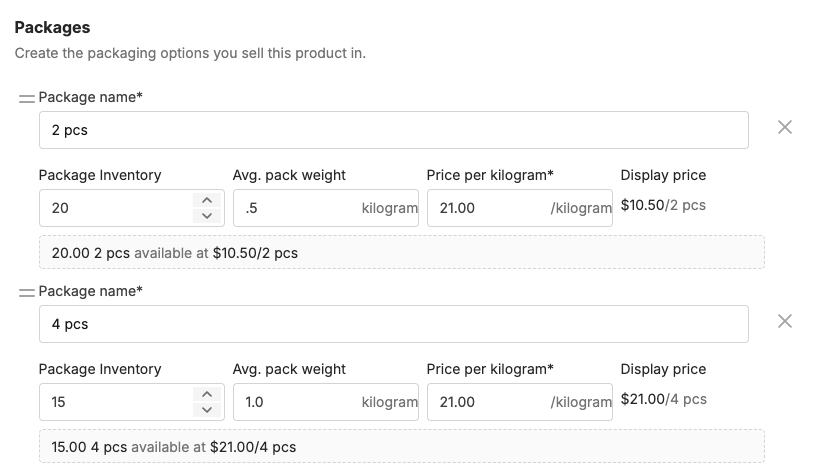
- In the Packages section, enter the average package weight. For example, if your ribeye steaks average 1.4 lb each, enter 1.4.
- Enter the price per weight unit (per lb or per kg)
- LocalLine calculates the average price per package automatically
On your storefront, customers see both the estimated price per package and the price per lb or kg, so they know exactly how they'll be charged.
Step 3: Turn on order approval
This is the most important step. Without it, customers are charged the estimated amount at checkout, and you can't adjust for actual weights before payment is collected.
- In the Product Status section at the bottom, turn on Orders with this product need approval
- Click Save
When approval is on, customers see a message at checkout letting them know they won't be charged until their products have been weighed and the final amount is calculated. They'll still need to select a payment method, even if their balance is $0 or covered by store credit, so any additional amount from weight adjustments can be collected. If they supply a credit card, the card details are captured so you can process payment after reviewing and adjusting the order.
Step 4: Adjust weights and approve orders
Orders containing a product that needs approval appear on your Orders page with a Needs approval label.
When you weigh and pack the order:
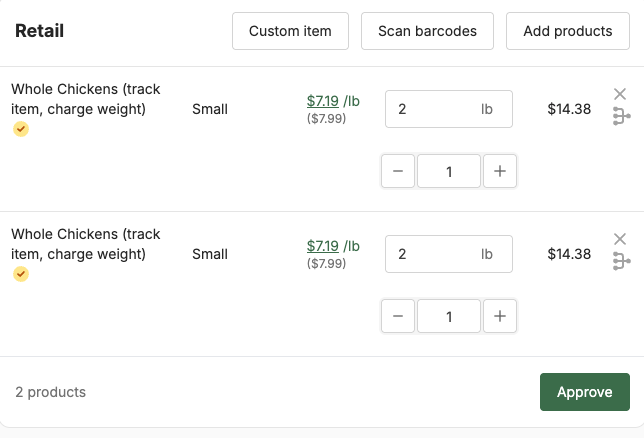
- Open the order and edit it
- Enter the actual weight for each variable-weight item. The price updates automatically.
- Click Approve to finalize the order
Step 5: Collect payment
How payment is collected depends on what the customer chose at checkout:
- Credit card or ACH/EFT: The customer's payment details are captured when they order. After approval, charge the final amount from your back office.
- Pay Later: Customers place their order without paying right away, which is useful when you offer payment terms. After approval, send them a link to pay online.
- Offline payment (cash, cheque, etc.): Send the customer the finalized invoice with the updated price.
For more on payment options, see Accepting card & ACH payments.
Using approval for shortages
The approval workflow isn't only for weight. Turn it on for any product with unpredictable supply, like early-season crops, so you can adjust quantities before payment if you come up short.
Best practices
- Keep average weights accurate. Review them each season. A realistic average keeps estimates close to final totals, so customers aren't surprised.
- Weigh at packing, not at harvest. Record weights on the packages that actually go out.
- Approve orders promptly. Customers expect a final charge soon after fulfillment.
- Explain it on your storefront. A short note in the product description ("Priced per lb; final price based on actual weight") prevents questions.
What's next
- Pricing & units of measure: set up units and package pricing
- Editing orders: adjust orders before fulfillment
- Inventory management: track stock by package or by weight
Need help? Contact support@localline.ca or use the in-app chat.