
In LocalLine, pricing is built around three things: the unit you track a product in, the packages customers can order, and the price of each package. Once those are set, you can adjust prices for specific price lists, for example to offer wholesale pricing to restaurants and retail pricing to everyone else.
This article covers how units, packages, and pricing work together.
How units and packages work
Every product has a base unit, the smallest unit you track it in. That might be an item (a bunch, a dozen, a jar) or a weight (lb, kg).
Packages are the formats customers actually order. Each package is made up of a set number of base units. For example:
| Product | Base unit | Packages |
|---|---|---|
| Carrots | lb | 1 lb bag, 5 lb bag, 25 lb case |
| Eggs | dozen | 1 dozen, flat of 2.5 dozen |
| Kale | bunch | 1 bunch, case of 24 bunches |
When you track inventory, orders deduct base units. A customer buying one 5 lb bag of carrots removes 5 units from your carrot inventory.
Choosing your units
When you create a product, the Track inventory section asks how you track the product and how you charge for it:
- Track and charge by package: best for fixed items like jars, bunches, or cartons
- Track and charge by weight: best for bulk products sold by the pound or kilo
- Track by package, charge by weight: best for variable-weight items like meat cuts, where customers order a package but pay for its actual weight
- Track by weight, charge by package: best when you manage stock in bulk but sell fixed packages
If you charge by weight, see Selling by weight for how to set average package weights and adjust final weights at fulfillment.
Tip: Tracking settings and units can't be changed after a product has been created. If you need to change them, duplicate the product with the new settings and hide or delete the original.
Setting package prices
- Go to the Products page and open the product (or click New Product)
- In the Packages section, enter a Package name (for example, "5 lb bag")
- Enter the # of items, which is the number of base units in the package
- Enter the Package price
- Click Add new package to add more sizes, and drag the handles to reorder them
- Click Save
The price you enter here is the base price. It's what customers pay unless a price list adjustment applies.
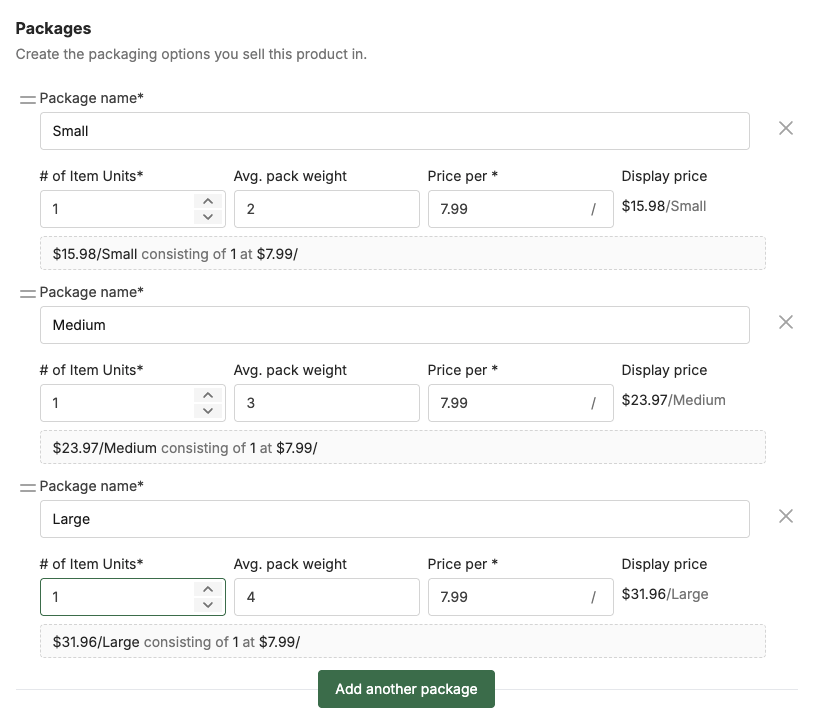
Tip: Order packages from smallest to largest. Customers scan them top to bottom, and it makes volume pricing easy to compare.
Adjusting prices by price list
You can charge different prices on different price lists without creating duplicate products, so that the same inventory is available across multiple channels at the most appropriate price.
- In the product's Add Product to Price Lists section, check the box beside the price list you want to add the product to.
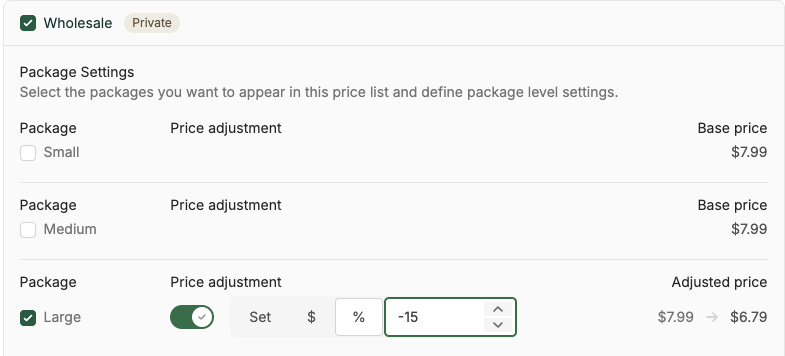
- Check the box beside each package you want to make available, then to apply a price adjustment turn on the price adjustment toggle
- Choose the adjustment type:
- Set: enter a specific new price
- $: add or subtract an amount from the base price
- %: add or subtract a percentage from the base price
- Enter the value. Use a minus sign for discounts (for example, -15 with % for 15% off).
- Click Save
For example, a 5 lb bag of carrots with a base price of $12.00 could show at $12.00 on your retail price list and at $10.20 on your wholesale price list, using a -15% adjustment.
You can also apply adjustments when building a price list. See Retail vs. wholesale pricing.
Price adjustments can also be changed in the price list Products table. Either individually using the PRICE ADJUSTMENT column, or in bulk by using the checkboxes and the Edit price adjustment bulk action.
Tip: The $ and % adjustment options are always relative to the base price, whereas the Set option is not. Keep this in mind when setting and adjusting your base prices!
Updating prices
To change a price, edit the product and update the Package price, then click Save. Price changes apply to new orders only. Orders already placed keep the price in effect when they were placed. Price changes will also apply to any upcoming and future subscription orders, unless the subscription plan has a price override for that package.
Base prices can also easily be adjusted in the Products table by clicking the price in the BASE PRICE column.
Best practices
- Name packages clearly. "5 lb bag" is clearer than "Large."
- Build volume pricing into packages. A case priced lower per unit than a single item encourages bigger orders.
- Use price list adjustments instead of duplicate products. One product with adjustments is much easier to maintain than separate retail and wholesale versions.
- Review pricing seasonally. Update prices before a new season opens rather than mid-cycle.
What's next
- Selling by weight: set up variable-weight products
- Product taxes: apply the right tax to each product
- Retail vs. wholesale pricing: offer different prices to different customers
Need help? Contact support@localline.ca or use the in-app chat.