
Many suppliers sell to both households and businesses. Retail customers usually pay full price for smaller packages, while restaurants, grocers, and other wholesale buyers get lower prices on larger quantities.
In LocalLine, you don’t need separate products for each. You keep one product catalog and use price lists to give each type of customer their own selection and prices.
How it works
- Each product has a base price for each of its packages, set on the product itself
- Each price list can adjust that price with a markup or discount, by a fixed amount or a percentage of the base price
- Customers see the price for their price list. Retail customers shop your retail price list, and wholesale buyers shop your private wholesale price list.
When you change a product’s base price, every price list that adjusts from it updates too (when using the relative adjustment options).
Choosing your base price
Decide which price to use as your starting point:
- Retail as the base: Set base prices at retail, then apply a discount on your wholesale price list. This works well if most of your sales are retail.
- Wholesale as the base: Set base prices at wholesale, then apply a markup on your retail price list. This works well if most of your sales are wholesale.
Either approach works. Choose the one that means fewer adjustments for you to manage. A third option is to set the base price as your cost for the product, and then apply different markups for both retail and wholesale accordingly, however this means you'll have to apply each markup to each price list for each new product you add.
Step 1: Set up a wholesale price list
Create a price list for your wholesale buyers. See Creating & editing price lists. Settings that typically suit wholesale:
- Price List Type: Wholesale
- Delivery Plans and Pick up locations: the options you offer businesses, like route delivery
- Order minimums: set these on the delivery plans and pickup locations you offer wholesale buyers, not on the price list. See Delivery routes & zones and Setting up pickup locations.
- Payment Methods: payment terms, for example 30 days until payment is due
- Default Product Listing Format: List, which is faster for buyers who order in volume
- Visibility Settings: turn on Private Price List so only approved buyers can see your wholesale prices
Step 2: Choose the right packages
Wholesale buyers usually want larger packages than retail shoppers. Add only the packages that make sense for each price list. For example:
- Retail price list: 1 lb bag and 5 lb bag
- Wholesale price list: 25 lb case
To offer a package on one price list but not another, use the checkboxes in the Add Product to Price Lists section when creating or editing a product. See Adding & removing products from a price list.
Step 3: Apply price adjustments
There are three types of price adjustments:
- Set: enter a new price
- $: add or subtract a fixed dollar amount from the base price
- %: add or subtract a percentage from the base price
To apply a discount with $ or %, put a minus sign before the value. For example, -15 with % applies a 15% discount. Note that the Set option sets a fixed price for the package that does not change when the base price changes.
Adjusting one product or package:
- On the Price lists page, click Products for the price list (or click its dot menu and select Edit products)
- Find the product or package using search, the category filter, or by scrolling
- Turn on the Price Adjustment toggle
- Choose Set, $, or %, and enter the value
- Click Save
Adjusting many products at once:
- On the Price lists page, click Products for the price list (or click its dot menu and select Edit products)
- Select one or more packages using the checkboxes (select all on a page by clicking the checkbox in the Product column header)
- Click Edit price adjustment
- Choose Set, $, or %, and enter the value
- Click Save
Note: There is no undo option for bulk price adjustments, so make sure you have the correct packages selected before saving. In the table it will indicate how many packages have been selected beside the bulk action buttons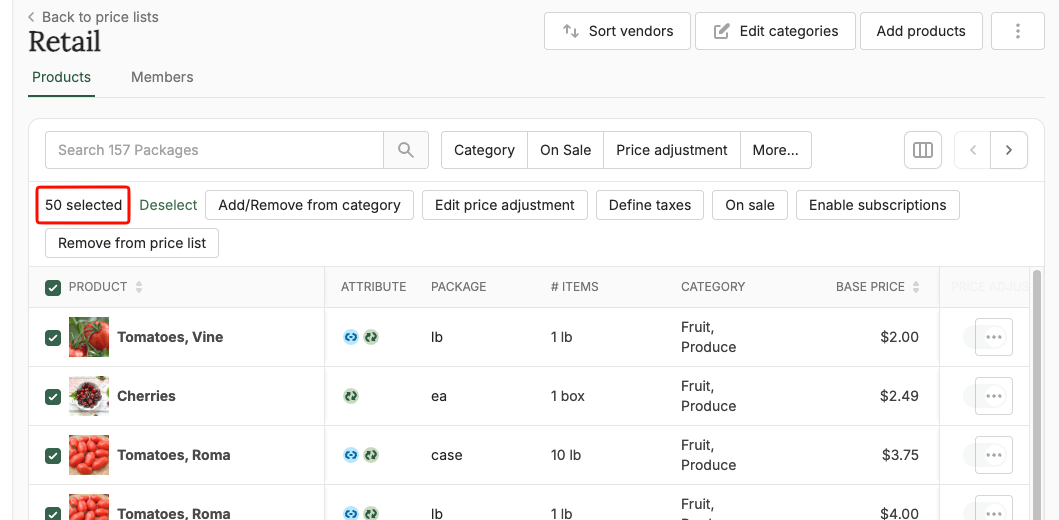
Example
A farm sells carrots to both retail customers and restaurants, with retail as the base price. The 5 lb bag and 25 lb case are on both price lists, and the wholesale price list discounts them:
| Package | Base price | Retail price list | Wholesale price list |
|---|---|---|---|
| 1 lb bag | $3.00 | $3.00 | Not offered |
| 5 lb bag | $12.00 | $12.00 | $10.20 (-15%) |
| 25 lb case | $50.00 | $50.00 | $40.00 (-20%) |
Both groups can buy the same 5 lb bag and 25 lb case, but each sees the price meant for them. If the farm later raises the 25 lb case’s base price to $55.00, the wholesale price updates automatically to $44.00.
Step 4: Assign your wholesale buyers
Add your wholesale customers to the wholesale price list, or approve their access requests. See Assigning customers to price lists.
Showing or hiding sale tags
A Sale tag on your storefront highlights a discounted product. It’s controlled separately from the price adjustment, so a product can be discounted with or without the tag. You can turn it on or off in two places:
- From the price list: On the Price lists page, click Products for the price list (or click its dot menu and select Edit products). Use the toggle in the Sale column for the product or package.
- From the product: Open the product, and in the Add Product to Price Lists section, turn on Mark as on sale for the price list.
On wholesale price lists, you’ll usually leave sale tags off, since wholesale pricing is the standard rate for those buyers rather than a promotion. Turn the tag on when you want to draw attention to a real promotion, like a limited-time discount on retail.
Best practices
- Keep wholesale price lists private. Approved buyers see your wholesale prices, and the public doesn’t.
- Use bulk adjustments for consistent discounts. If every wholesale product is 20% off retail, apply the adjustment to everything at once.
- Use Set for fixed prices. $ and % adjustments update automatically when you change a base price, but Set prices don’t. Use Set for negotiated prices that shouldn’t change, and remember to update them yourself when needed.
- Review pricing each season. Make sure wholesale prices still cover your costs when base prices change.
- Create separate price lists for different buyer tiers. If restaurants and grocers get different pricing, give each group its own price list. Duplicating speeds this up.
What’s next
- Assigning customers to price lists: give buyers access to their price list
- Pricing & units of measure: set base prices and packages
- Price list troubleshooting: fix pricing issues
Need help? Contact support@localline.ca or use the in-app chat.