
A product only appears on your storefront once it's been added to a price list. Since each price list has its own products, you can offer your full catalog to retail customers and a smaller, case-pack selection to wholesale buyers, all from one product catalog.
This article covers adding products to a price list and removing products or packages from it.
Adding products from the price list
This is the fastest way to add many products to one price list.
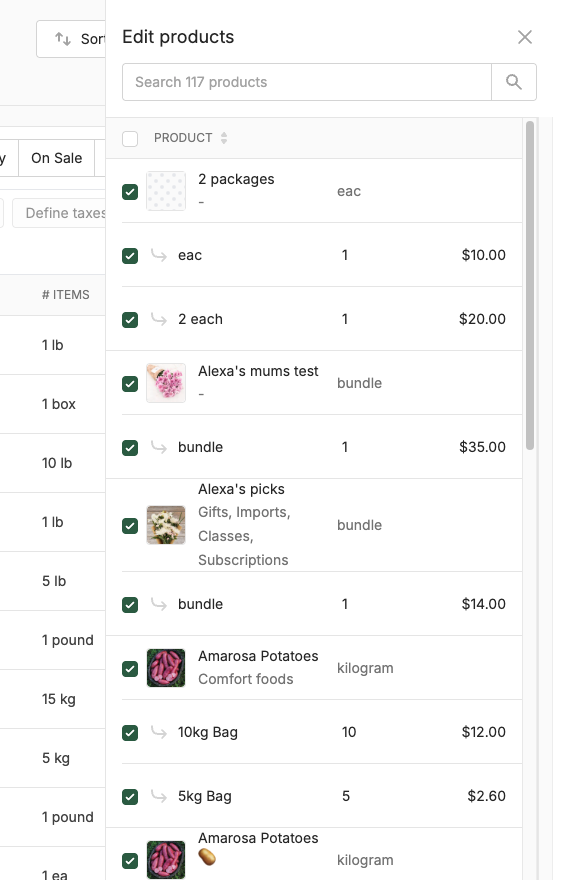
- On the Price lists page, click Products for the price list (or click its dot menu and select Edit products)
- Click Add products
- Select the products you want to add using the checkboxes. Check the parent product to add all packages of that product, or click individual packages to only add certain ones. To add everything, check the box at the top of the list and then click Select all products in table
- Click Save
New products go into Uncategorized until you assign them a category. See Creating & managing categories in a price list.
Adding a product from its product page
This is the easiest way to add one product to several price lists at once.
- Go to the Products page and open the product
- In the Add Product to Price Lists section, check each price list the product should appear on
- Choose a category for each price list, and apply any price adjustment
- Click Save
See Adding & editing products.
Adding many products to a price list from the Products page
- On the Products page, select the products you want to add using the checkboxes
- Click the Price list bulk action button
- Select which price lists you want to add the products to using the checkboxes (all packages of selected products will be added)
- Optionally choose a category for each price list
- Click Save
Removing a product or package
Removing a product from a price list doesn't delete it from your catalog or from other price lists.
One product or package:
- On the Price lists page, click Products for the price list (or click its dot menu and select Edit products)
- Click the dot menu for the package
- Click Remove package
Removing a single package is useful when you only want to offer some sizes on a price list. For example, you might sell 1 lb and 5 lb bags to retail customers, but only 25 lb cases on your wholesale price list.
Many products or packages:
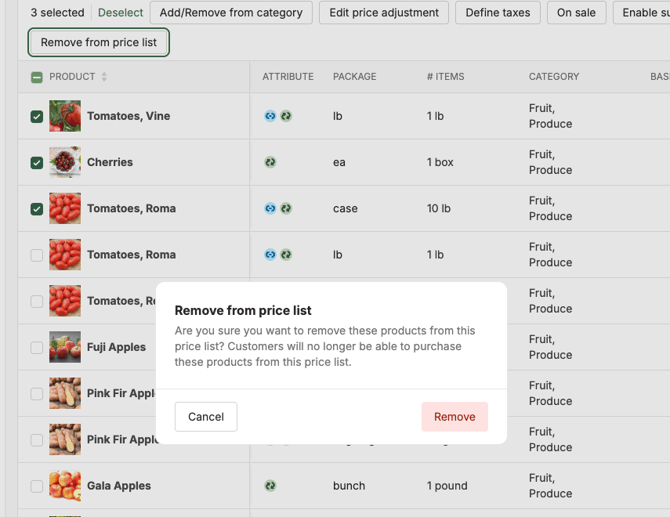
- On the Price lists page, click Products for the price list (or click its dot menu and select Edit products)
- Select the products or packages you want to remove, or click Select all
- Click Remove from price list
- Click Remove to confirm
Hiding vs. removing
If a product is only temporarily unavailable, like an out-of-season crop, you can hide it instead. Turn off Product visibility on the product to hide it from your storefront without removing it from your price lists. This will hide the product on all price lists it has been added to. When it's back, turn visibility back on. See Adding & editing products.
Keep in mind that a product's visibility setting applies to all price lists. To hide a product from just one price list, you can remove it from that price list. Another option is to turn off the Uncategorized Product Visibility setting and then remove the product from all categories on that price list.
Best practices
- Tailor each price list to its customers. Wholesale buyers usually want bulk packages and a focused selection, while retail shoppers want variety and smaller sizes.
- Check new products' price lists. When you create a product, add it to the right price lists right away so it doesn't get missed.
- Categorize as you go. Assign categories right after adding products so your storefront stays organized.
- Review your price lists each season. Remove products you no longer offer, and add new seasonal ones.
What's next
- Creating & managing categories in a price list: organize the products on your price list
- Retail vs. wholesale pricing: set different prices on different price lists
- Assigning customers to price lists: control who sees each price list
Need help? Contact support@localline.ca or use the in-app chat.